
Getting started with Azure DevOps (Pt 1)
Part 1 of this guide looks at creating a new Azure DevOps Organization and a new Project to hold your code.
Table of Contents
- Introduction
- Create a new Azure DevOps Organization
- Create a new Azure DevOps Project
- Delete an Azure DevOps Project
- Choose a project type - Agile, Scrum, etc.
- Extensions in Azure DevOps
Introduction
If an Organization already exists for your client you can skip to the Project creation section. I would advise reviewing the section on ‘Organization settings’ Vs. ‘Project Settings’.
In many cases your client may have already created an Azure DevOps organization. It will often be aligned towards the clients business name and can be accessed via the url https://dev.azure.com/{Org__Name}. Selecting the previous link would have returned an error as you are unlikely to have permissions within Microsofts ACME equivalent Contoso.
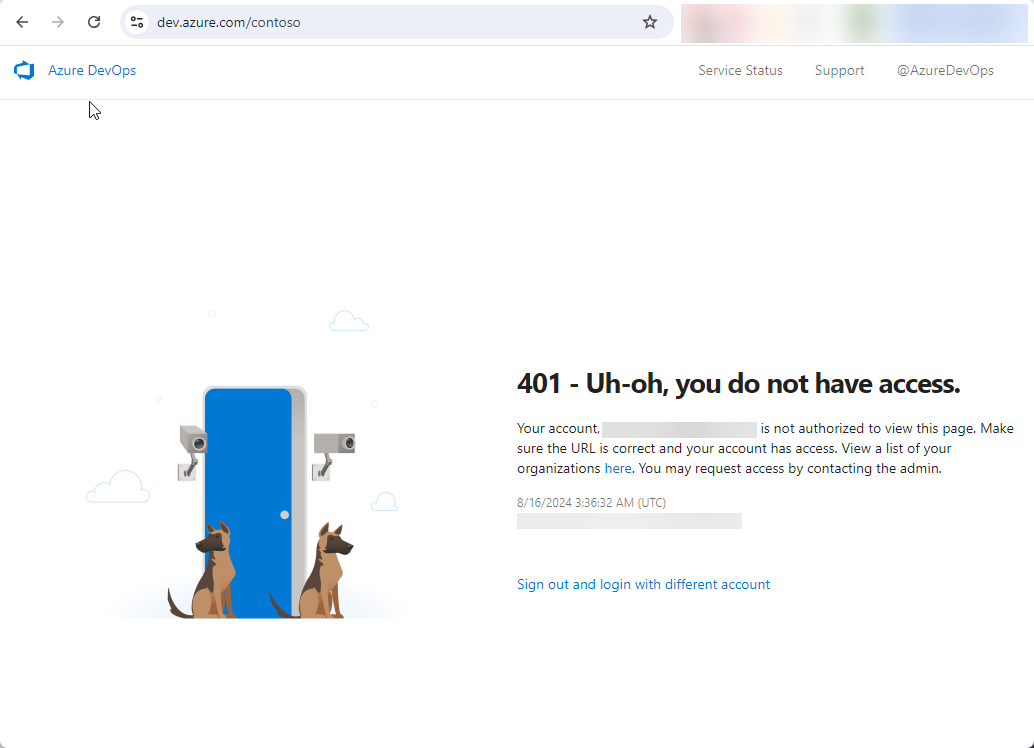
Luckily new organisations within Azure DevOps are configured securely for free by default. Having a look at an organization that I frequently use for Microsoft Learn related projects we can see it is similarly restricted.
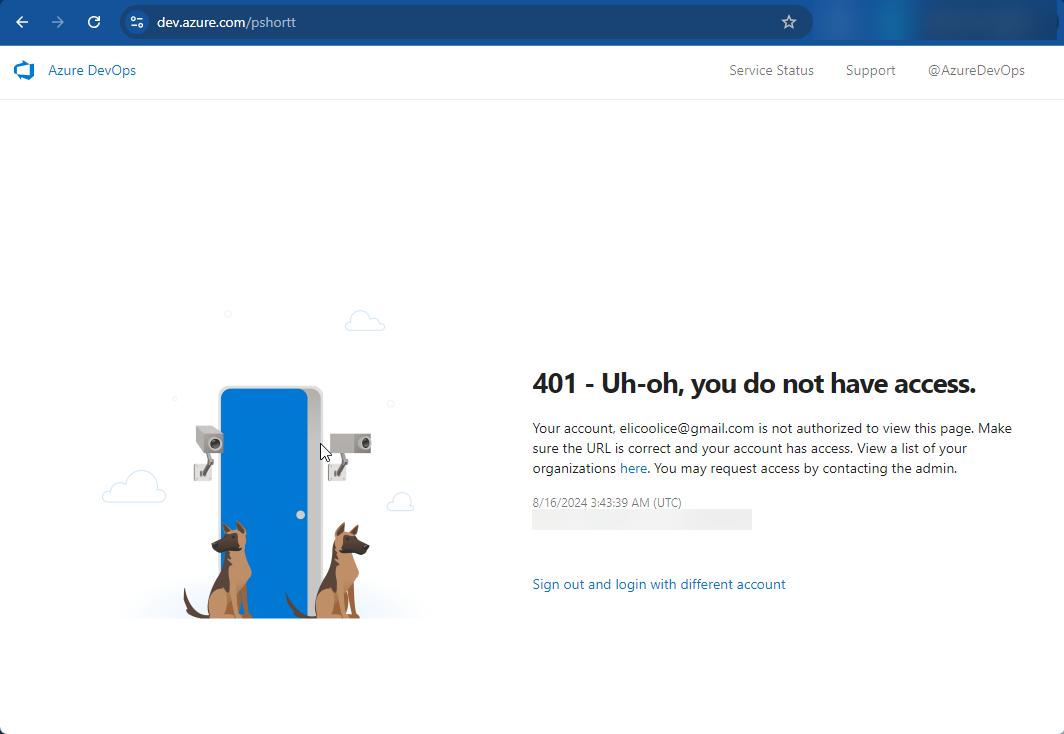
Note: Yes, these restrictions can be modified.
Create a new Azure DevOps Organization
Modify the below instructions appropriately for the account you want to login as. If you are creating a new Organization for your client, permissions will be more easily aligned if you use an Entra account from their tenant. To create a personal organization this consideration is less important.
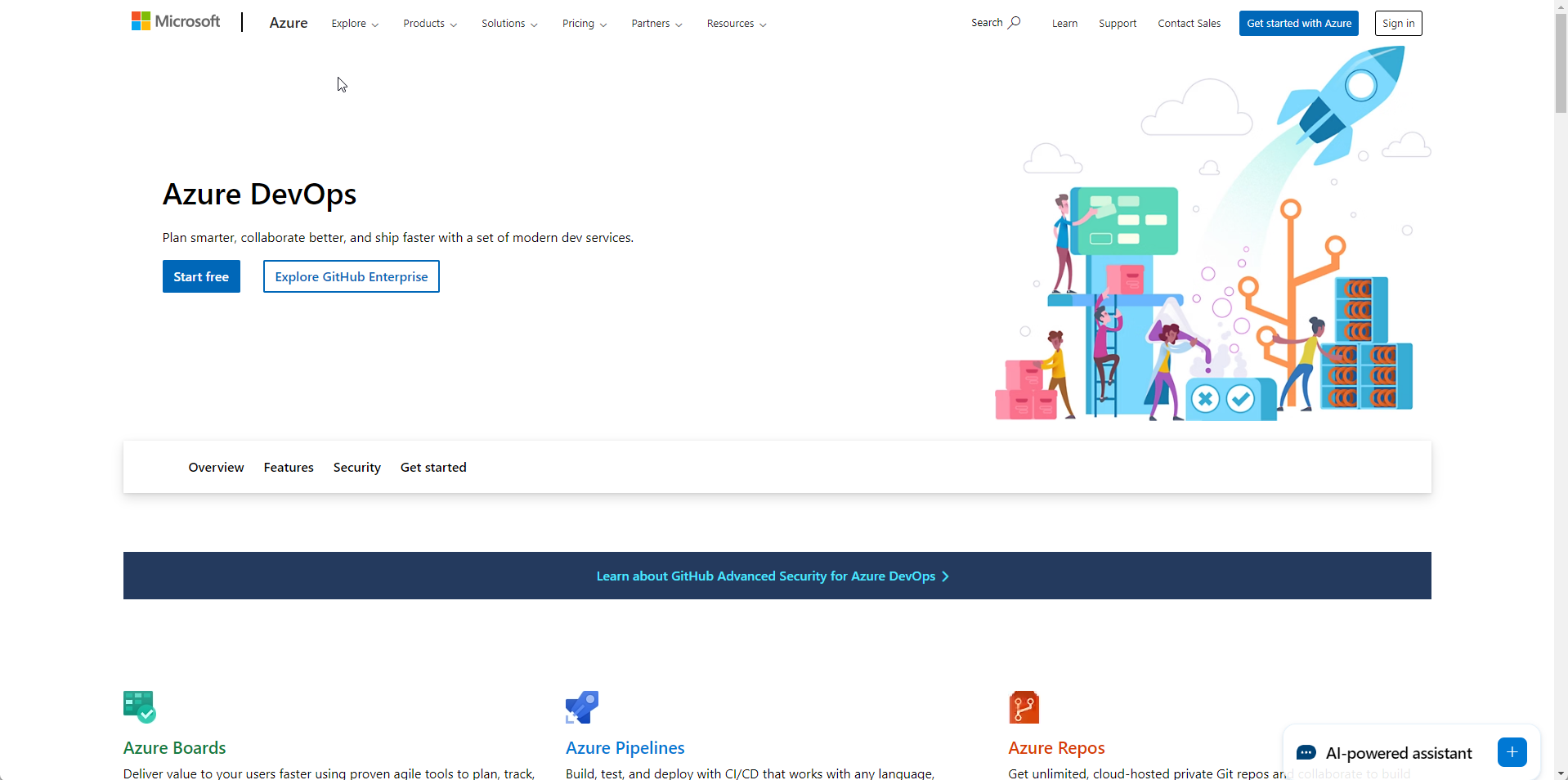
LetsIf your project repositories are to be stored in their organization then you skip this first step. Otherwise navigate to dev.azure.com and select the option to ‘Start free’.
-
Launch a new browser window and navigate to https://dev.azure.com which will redirect you to the appropriate launch page. Select the option to ‘Start free’.
-
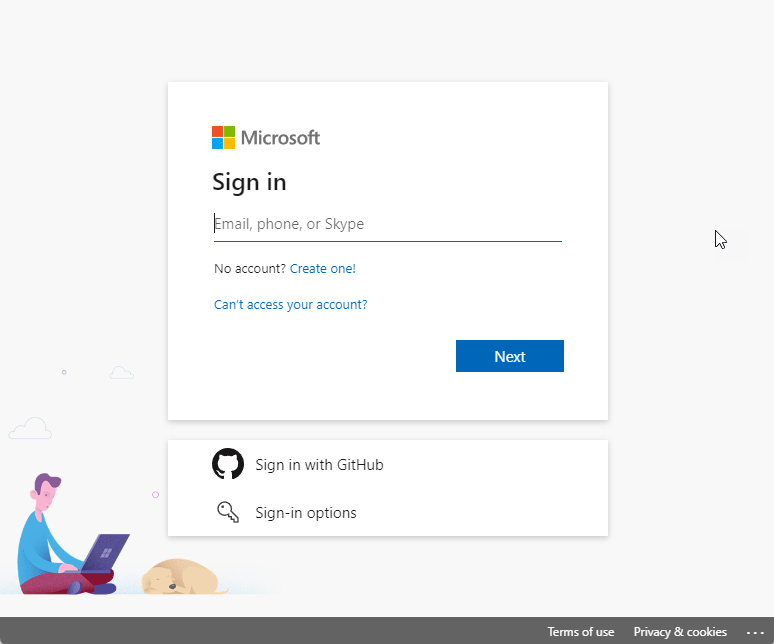
Sign in with an appropriate account - giving consideration to the longer term lifecycle of the new Devops Organization.
-
As is standard with Microsoft Live/Entra accounts you will generally be prompted to complete the relevant MFA requirements.
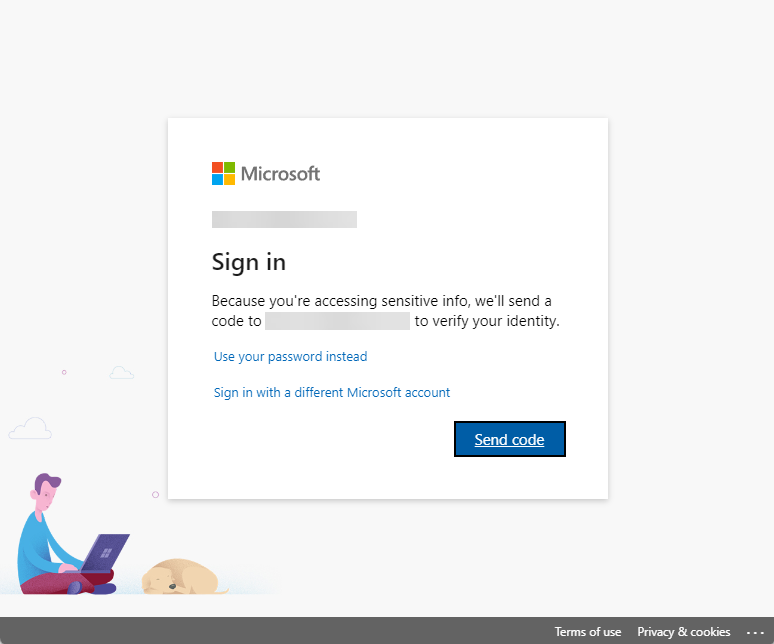
-
Complete the appropriate MFA prompt
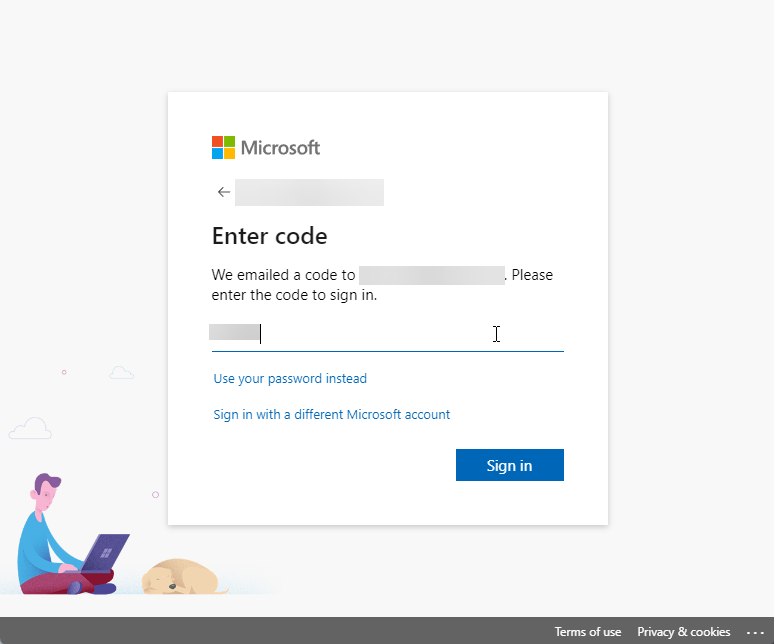
-
Welcome to the Get started with Azure DevOps screen
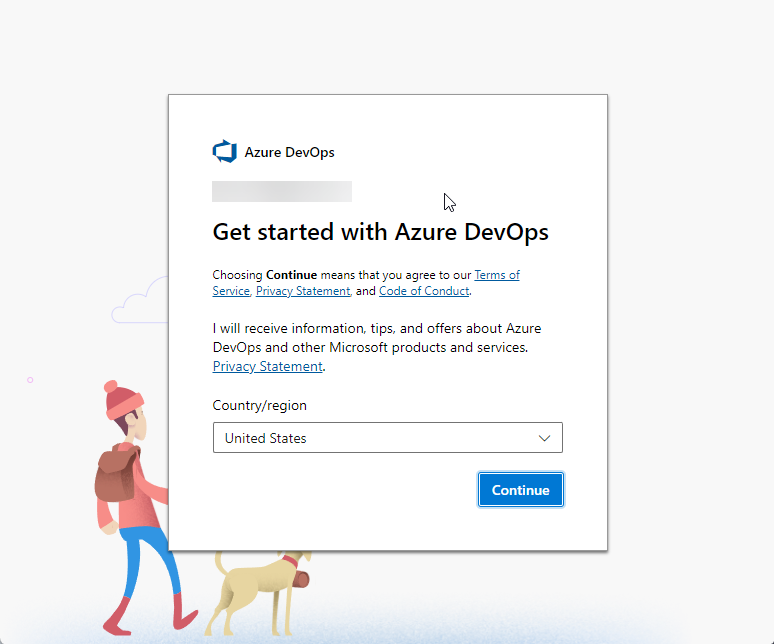
-
Set the appropriate region for your location 1
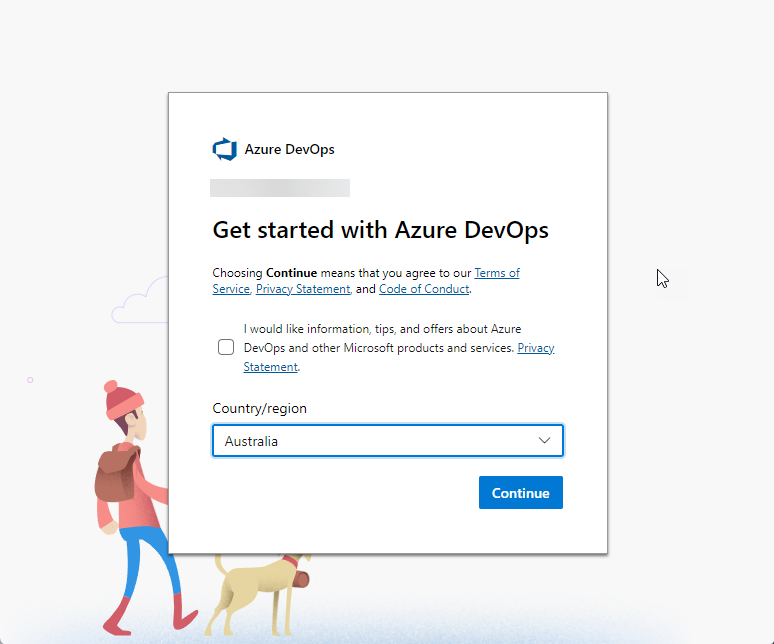
-
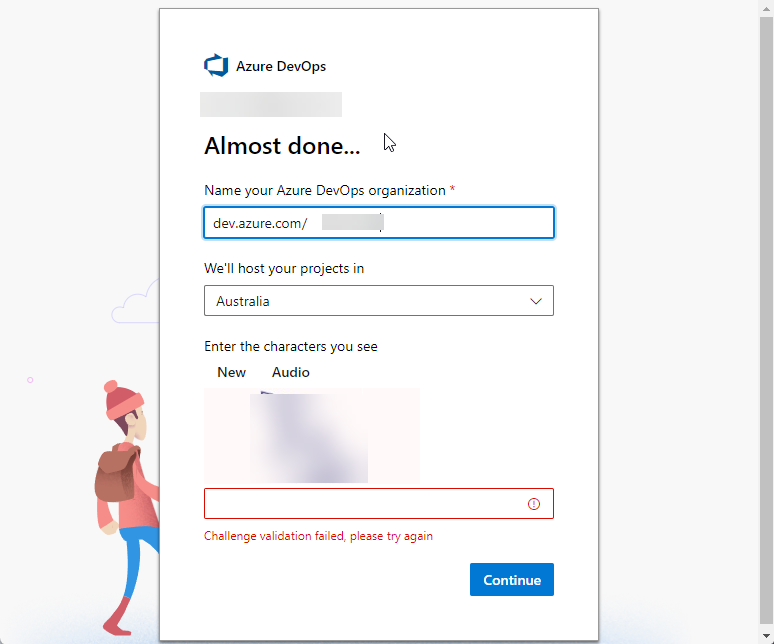
You are now prompted to name your Organization. As illustrated at the top of this article your organization name must be globally unique.
-
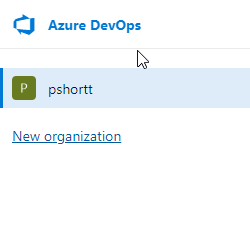
In the event you already have an Azure DevOps organization and you are creating a new one via the ‘New organization’ link below:
-
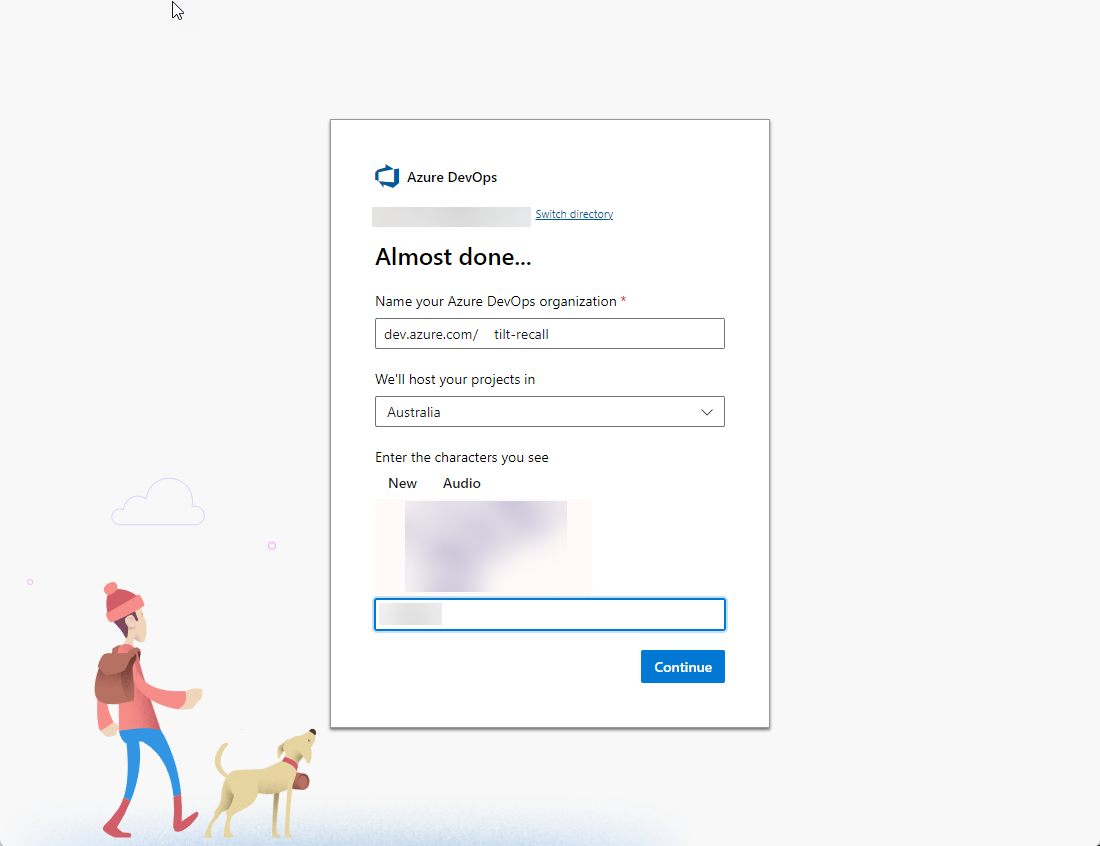
You can see that Step 7. and this, Step 9. offer the same organization creation experience.
-
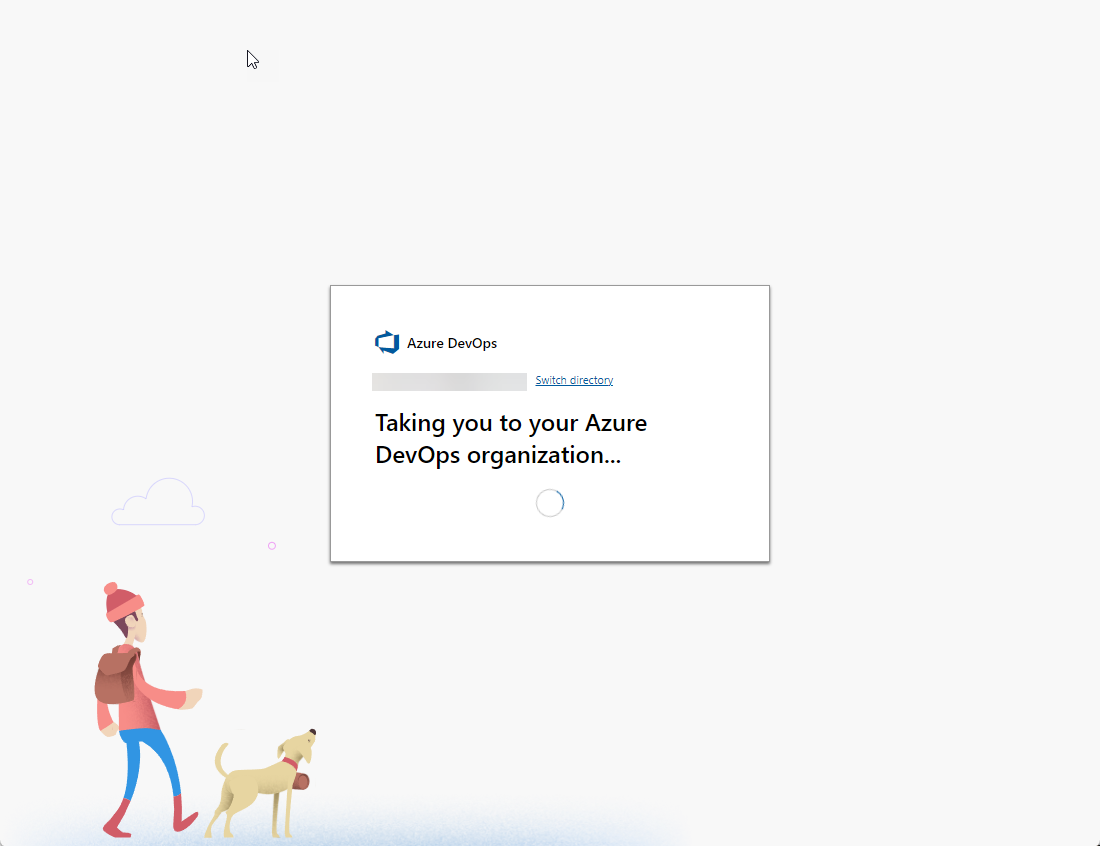
The new organization wizard will complete the creation process.
-
The organization has been created and you are prompted to create a new project.
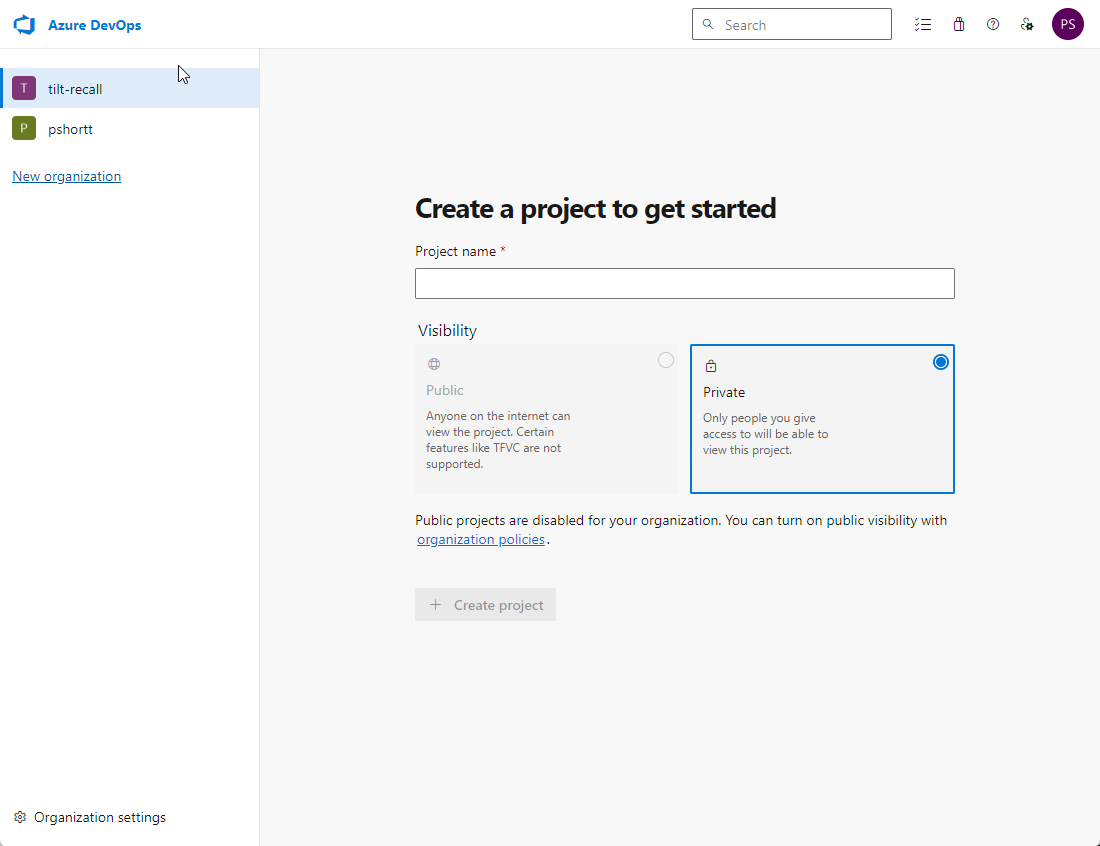
You will note:
- By default the project will default to ‘Private’
- Public Projects can be enabled by modifying the relevant organization policies
- In a new Organization the default Project type is Basic which is often not what you want. Review the section on Choose a project type - Agile, Scrum, etc. to see if this is right for your needs.
-
Give the new project a name and click ‘+ Create project’. The project name must only be unique within your organization.
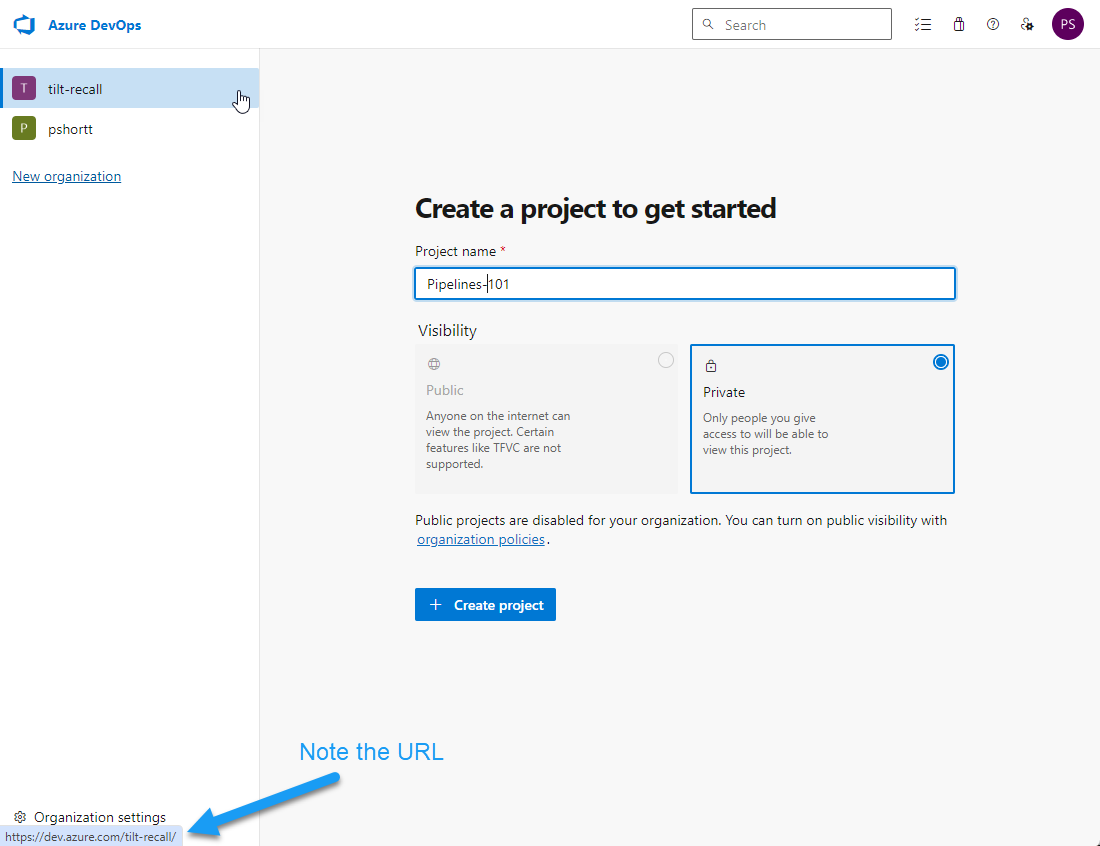
Note the indicated URL for your Azure DevOps organization.
-
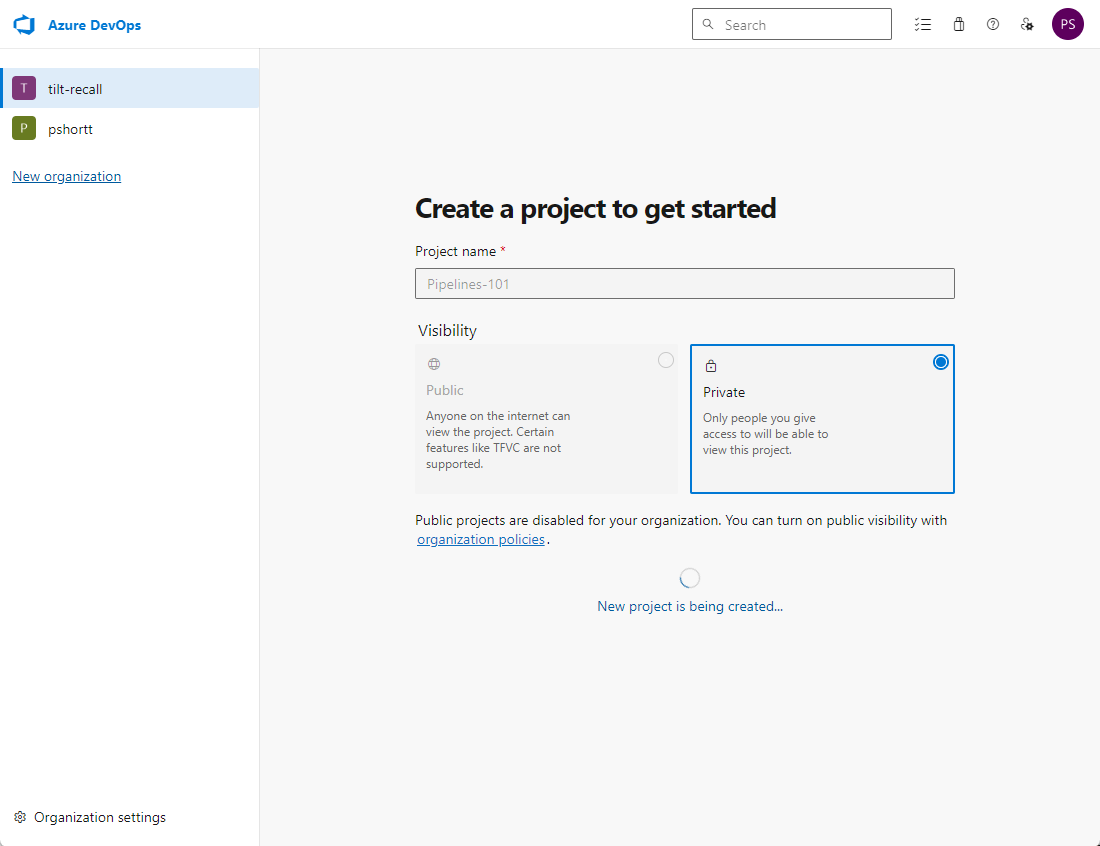
Project creation will take a few seconds to complete.
-
The new project will be opened with the default components - Overview, Boards, Repos etc.
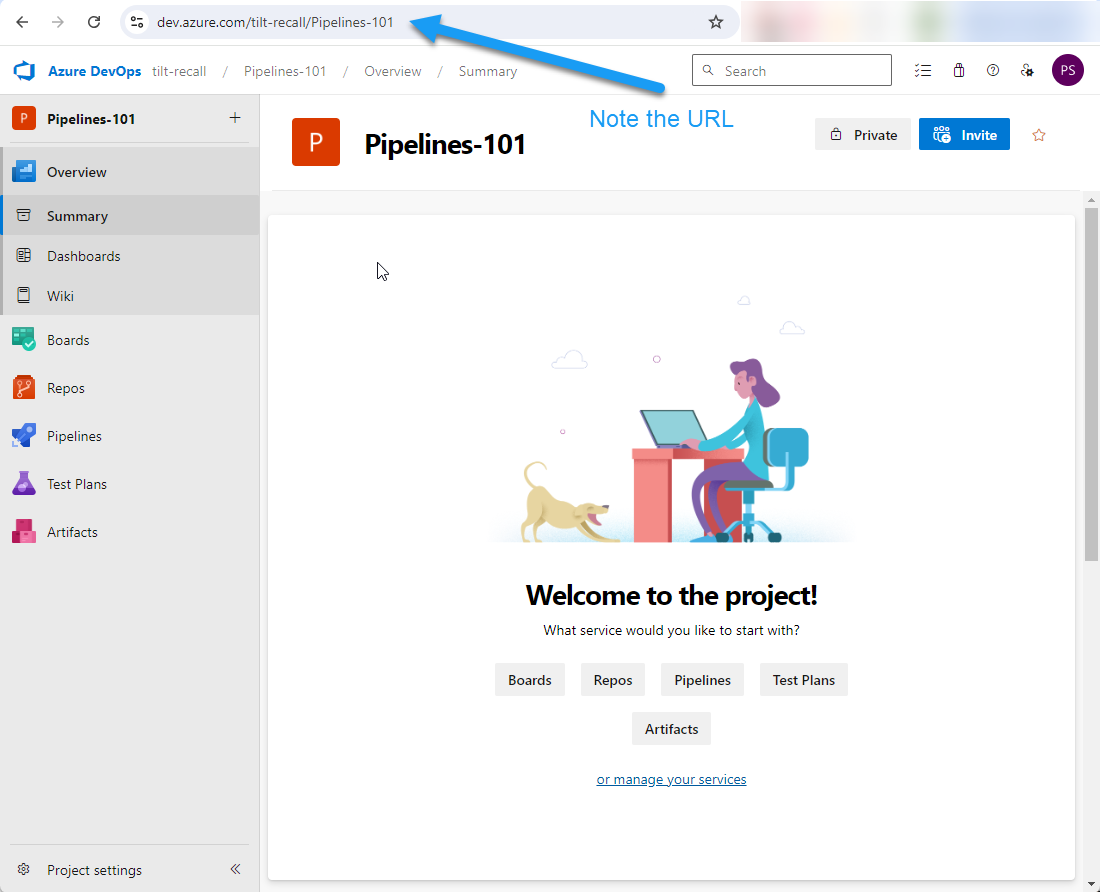
Note the globally unique URL for your project.
Create a new Azure DevOps Project
You will generally not create very many new organizations, you will instead create new projects as required.
-
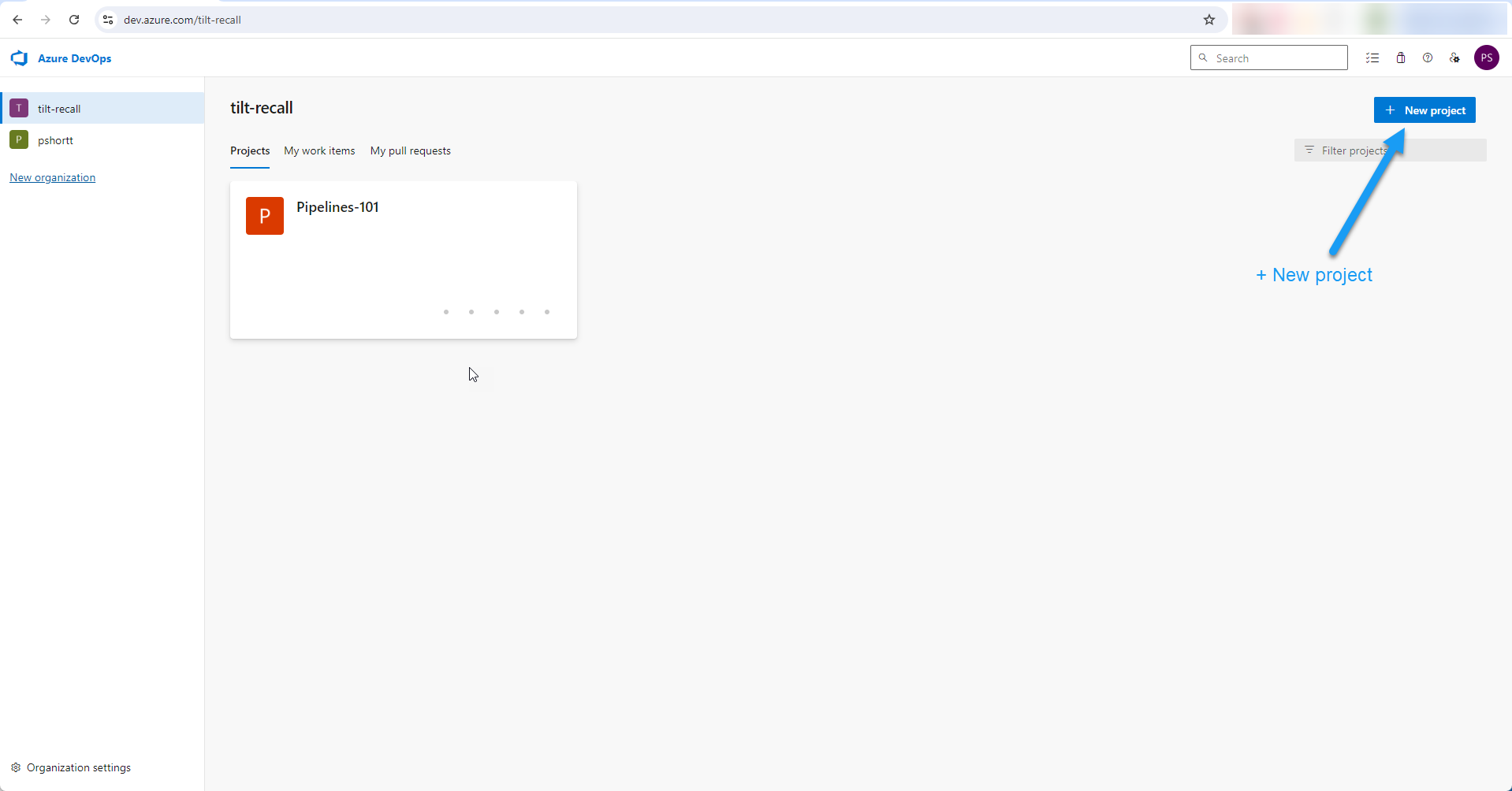
Open your organization. In this worked example I can navigate directly to it via its unique URL - https://dev.azure.com/tilt-recall.
Select the ‘+ New project’ option.
-
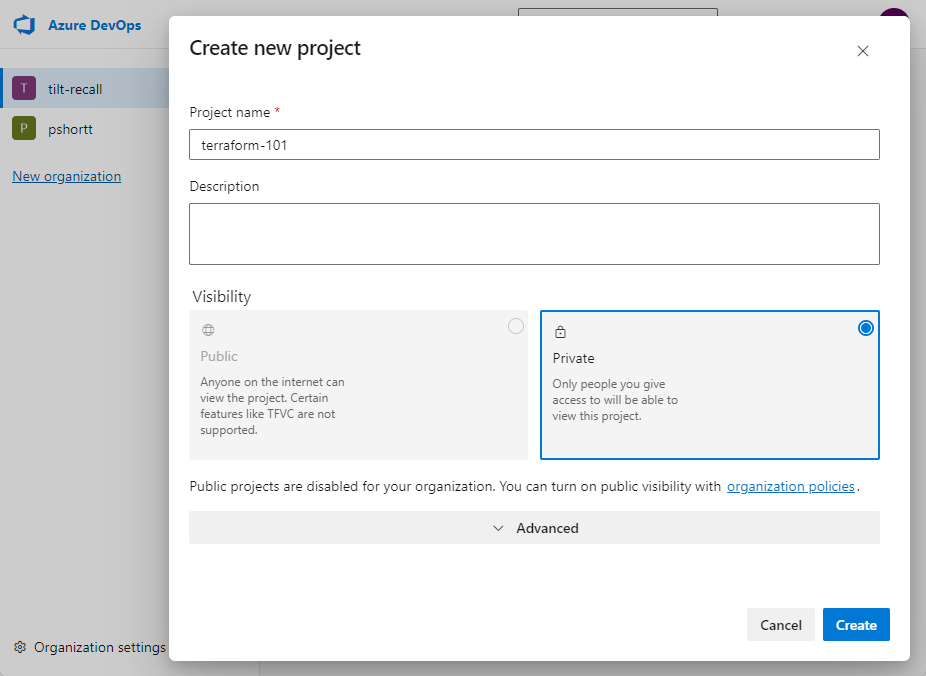
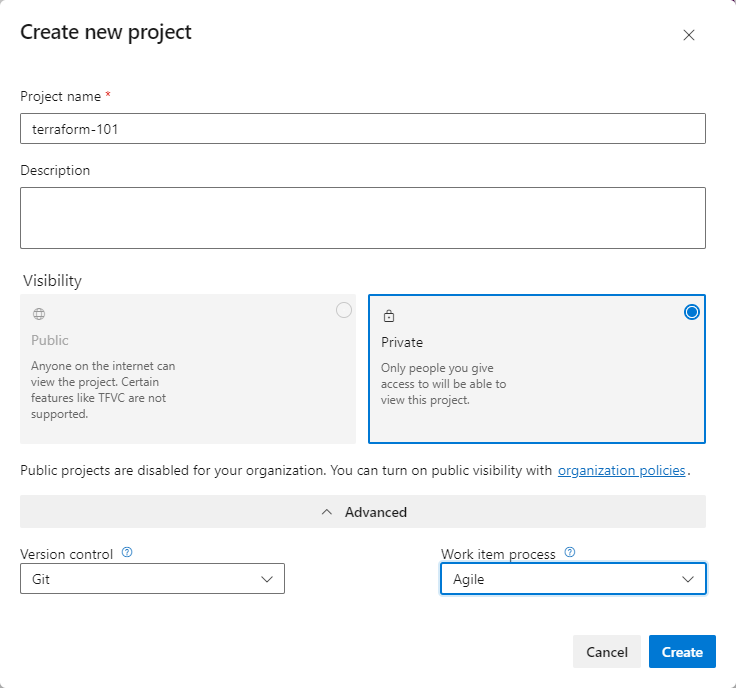
Give the new project a name and desciption as appropriate.
-
Observe the Advanced dropdown. Select this and review the options.
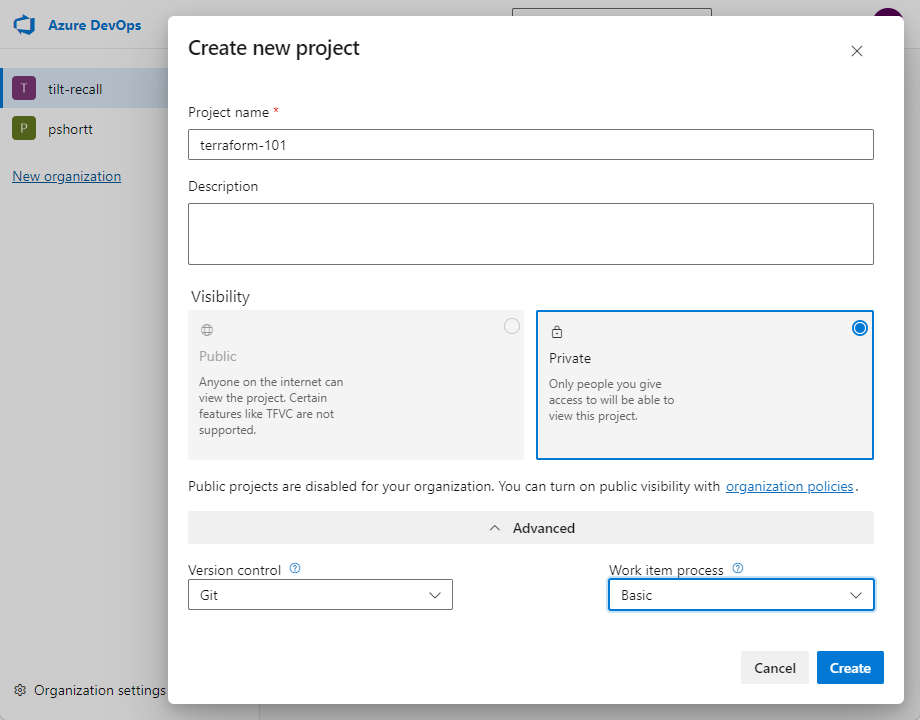
Note: Observe the default project methodology of Basic.
-
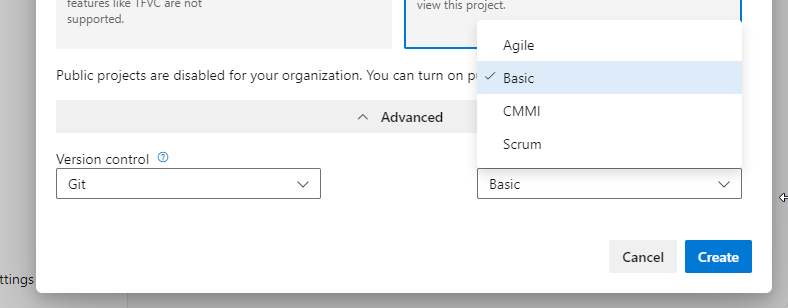
From within the Work item process list choose an option that will align with your project methodology.
-
Review your selections and select Create.
-
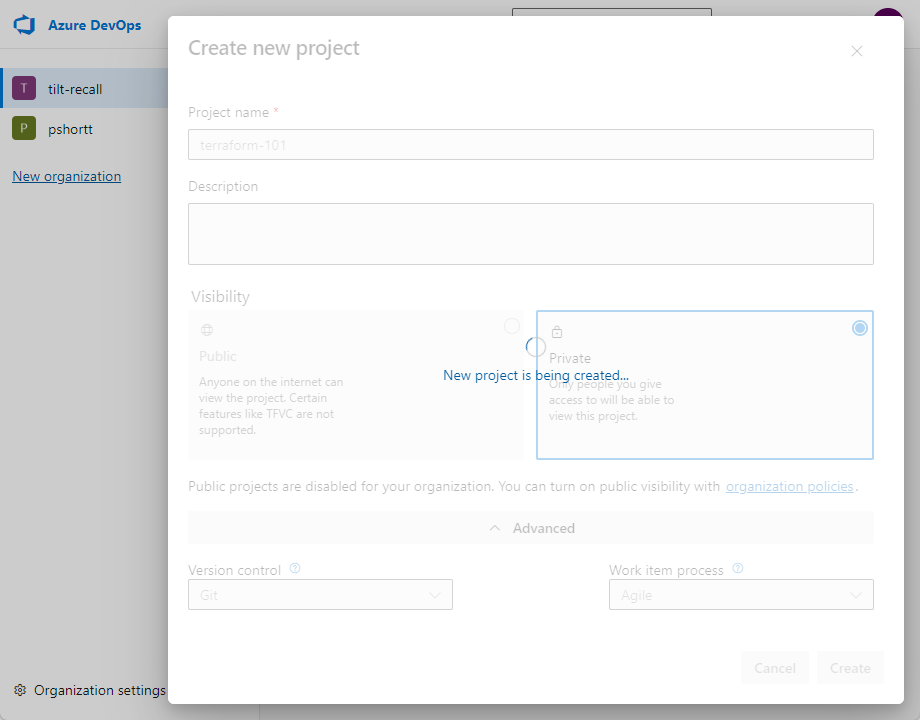
The new project will take a few seconds to create.
-
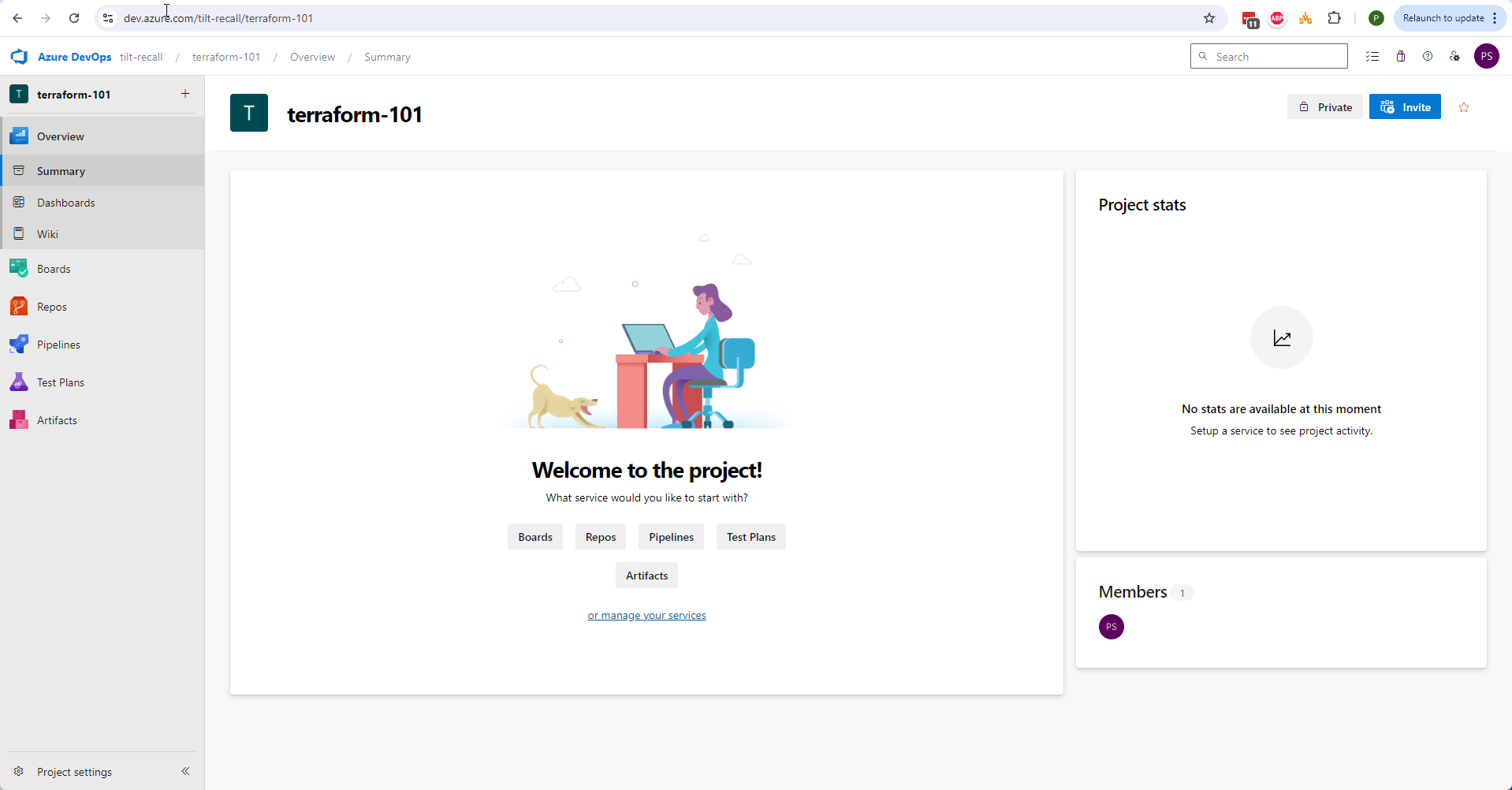
The new project has been successfully created. The project methodology chosen in Step 4 may influence what you see in your project.
Delete an Azure DevOps Project
The following section will detail the deletion of a project. Absent the configuration of some backup methodology this process is irreversible.
As observed previously the default project methodology is ‘Basic’ if you have configured a project as such and require an alternate configuration the fastest remediation is to delete the project and recreate it with the appropriate settings.
To delete an Azure DevOps Project:
-
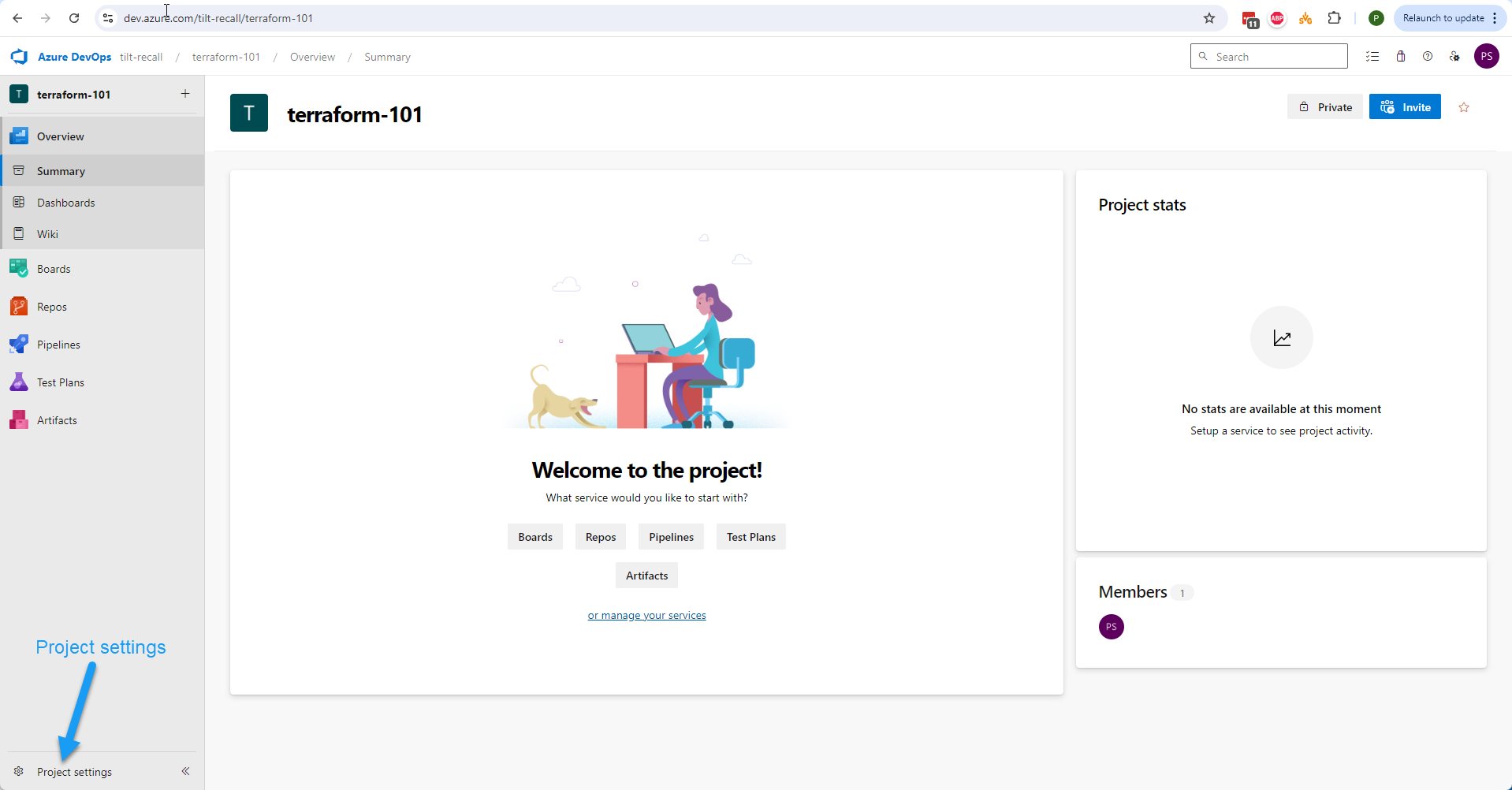
Navigate to the project to be deleted.
-
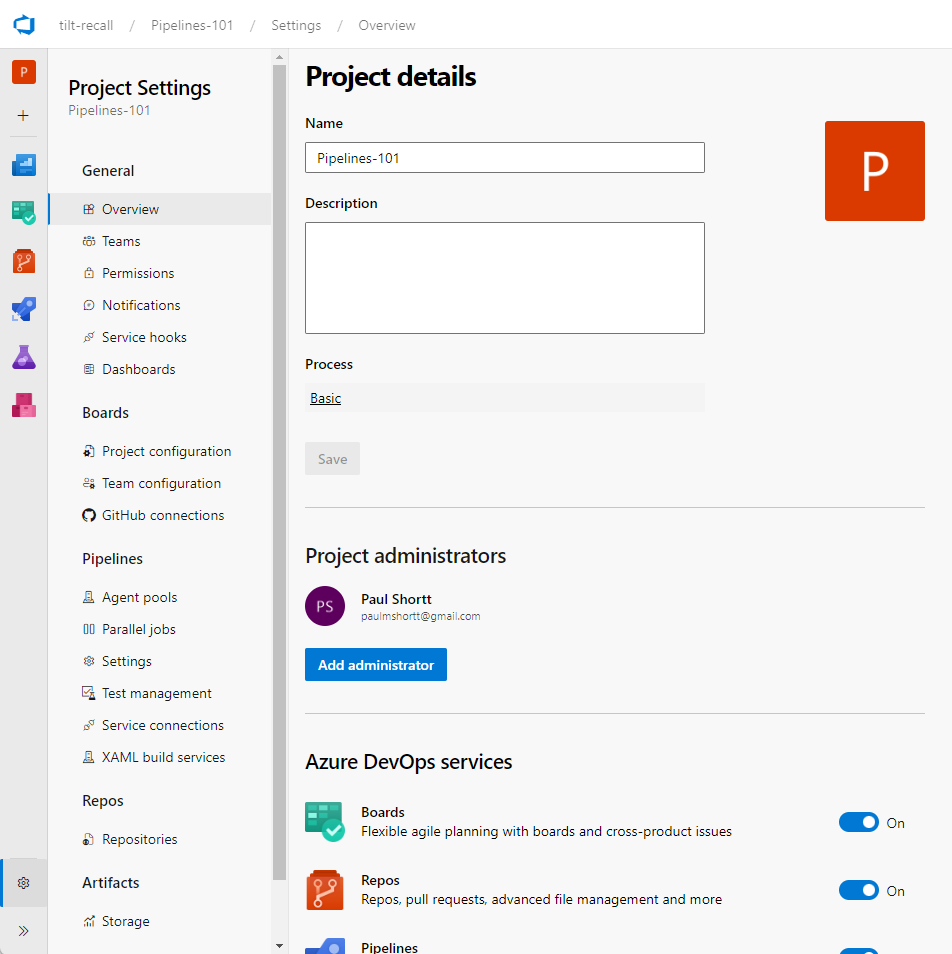
Open ‘Project settings’ and within the ‘General’ ‘Overview’ pane scroll to the bottom.
-
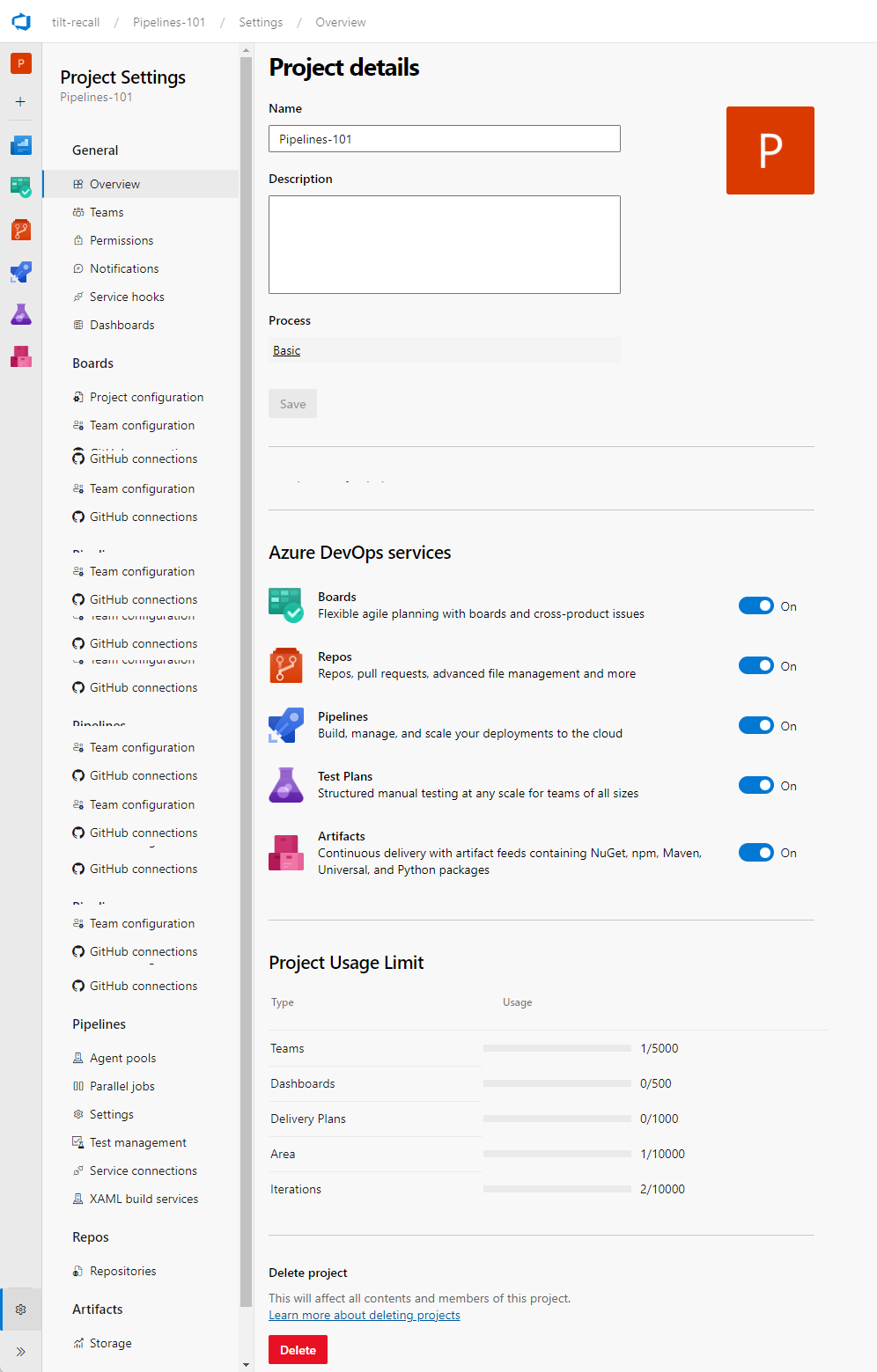
Select the option to ‘Delete project’ at the bottom of the page.
-
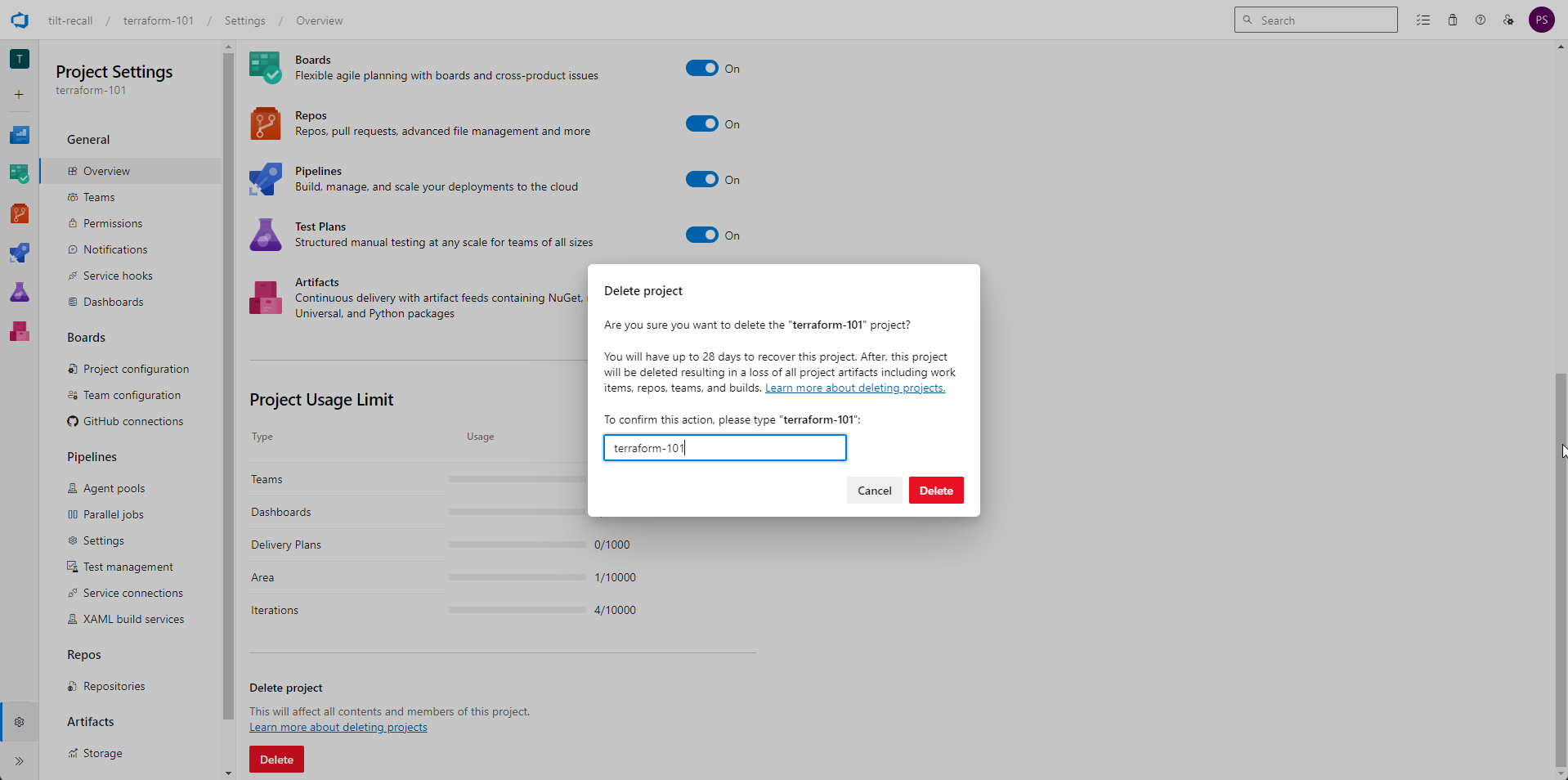
Enter the project name in the confirmation box and select ‘Delete’.
Choose a project type - Agile, Scrum, etc.
When creating a new Project we observed 4 options in the Advanced section:
We can navigate to the ‘Work Process’ settings in 2 ways:
-
From within the project:
-
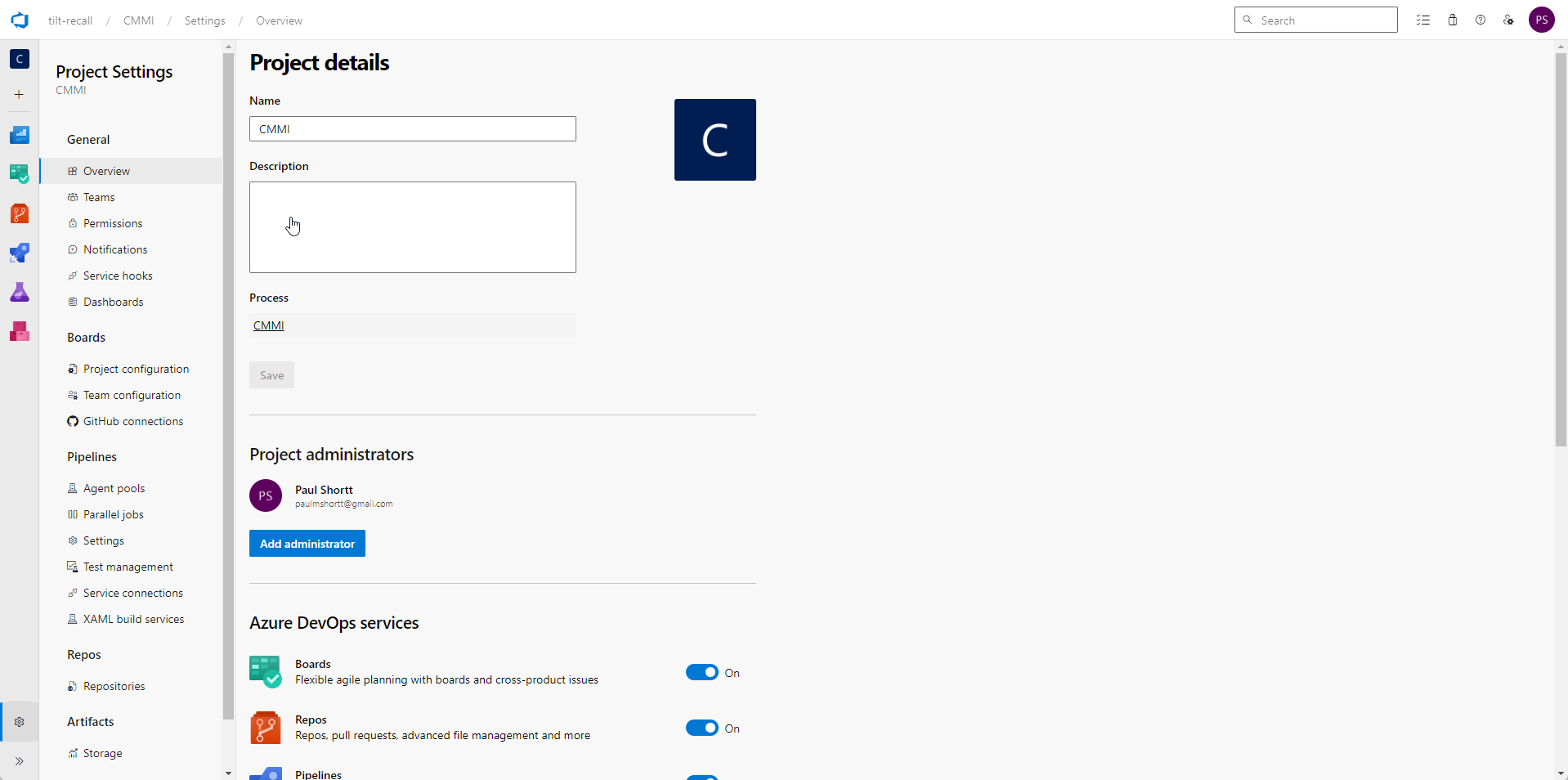
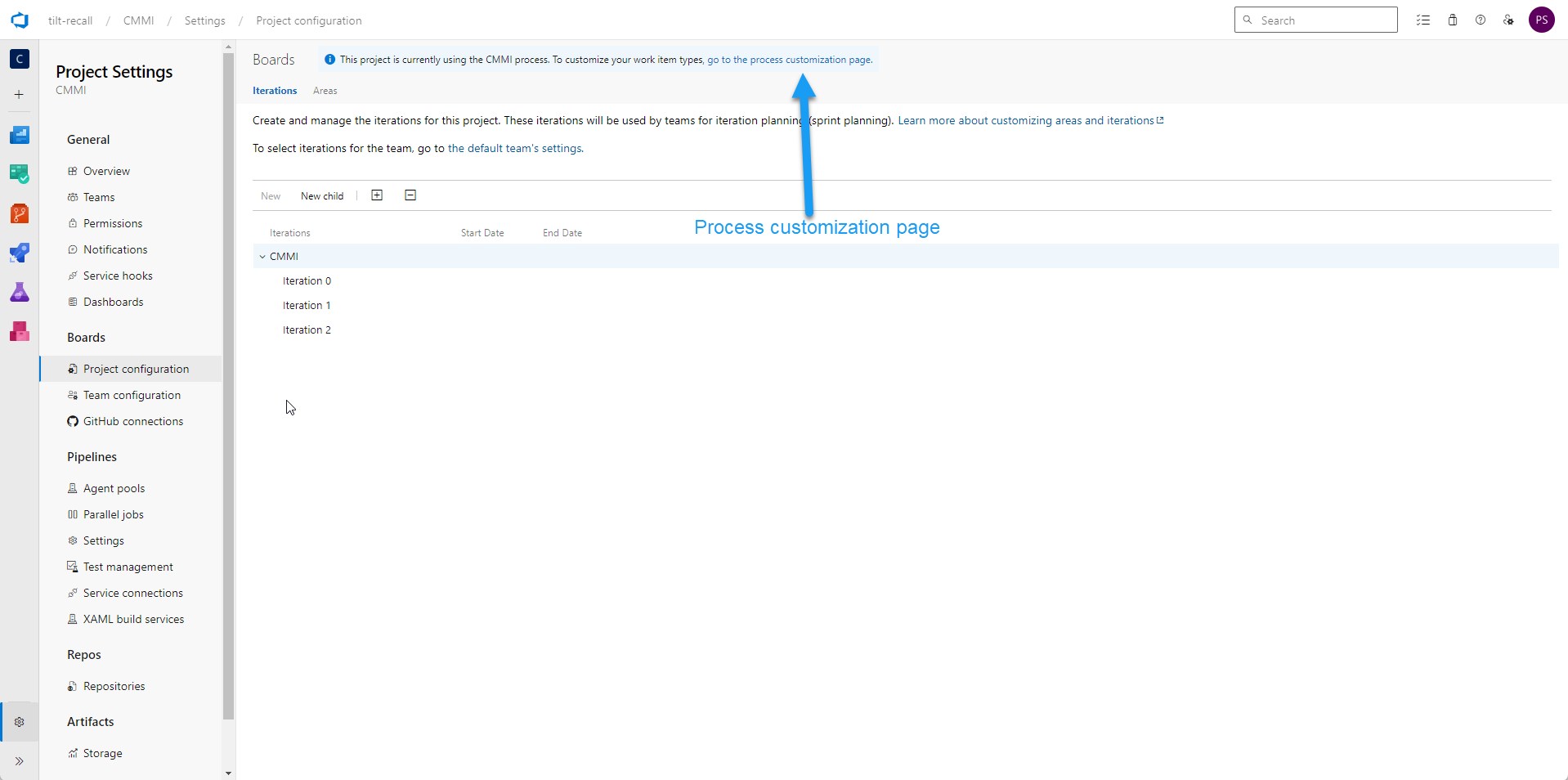
Open the ‘Project Settings’.
-
Select the ‘Project configuration’ blade and click on the hyperlink to ‘go to the process customization page’.
-
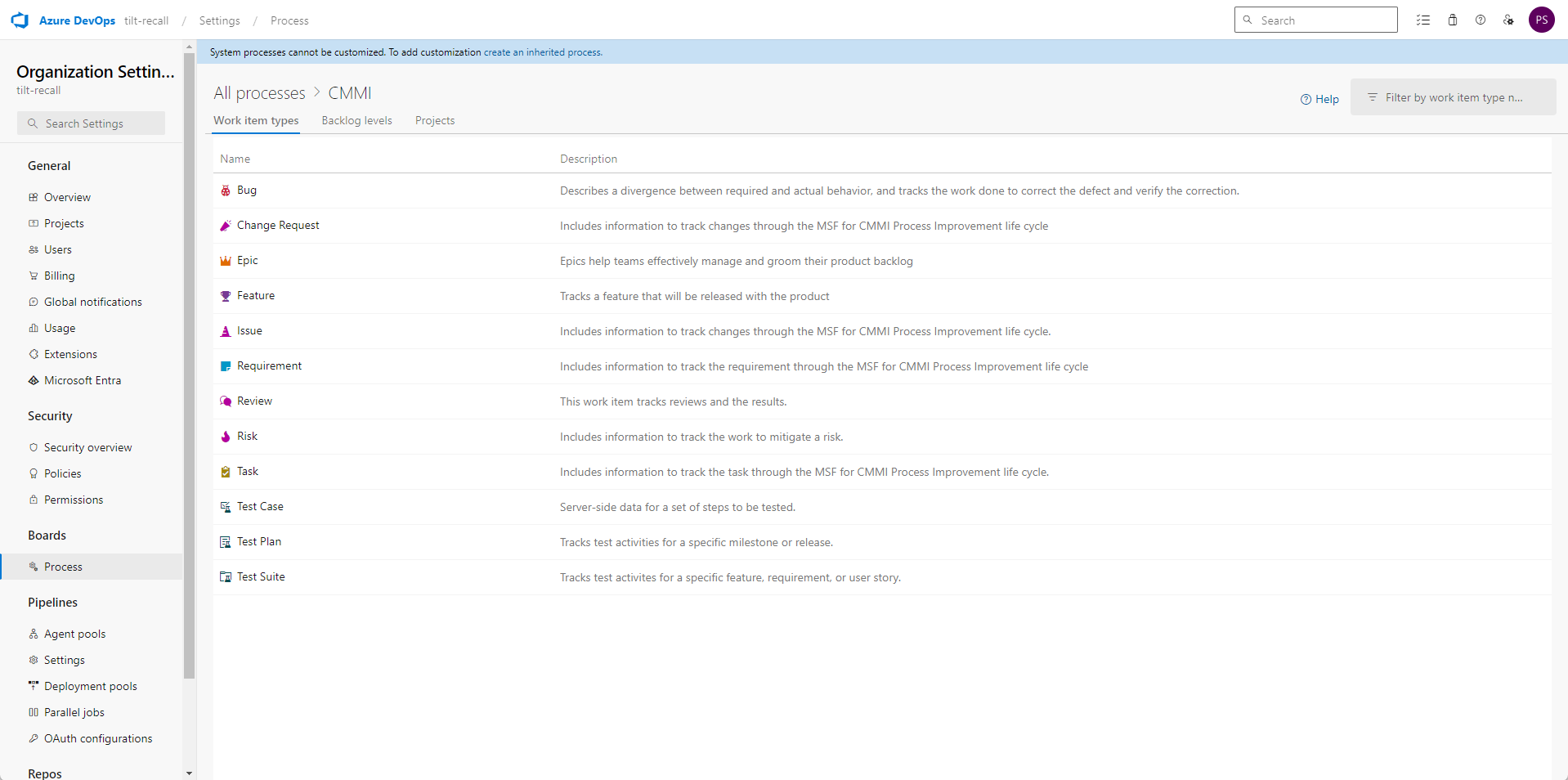
You can review the current configuration directly here.
-
-
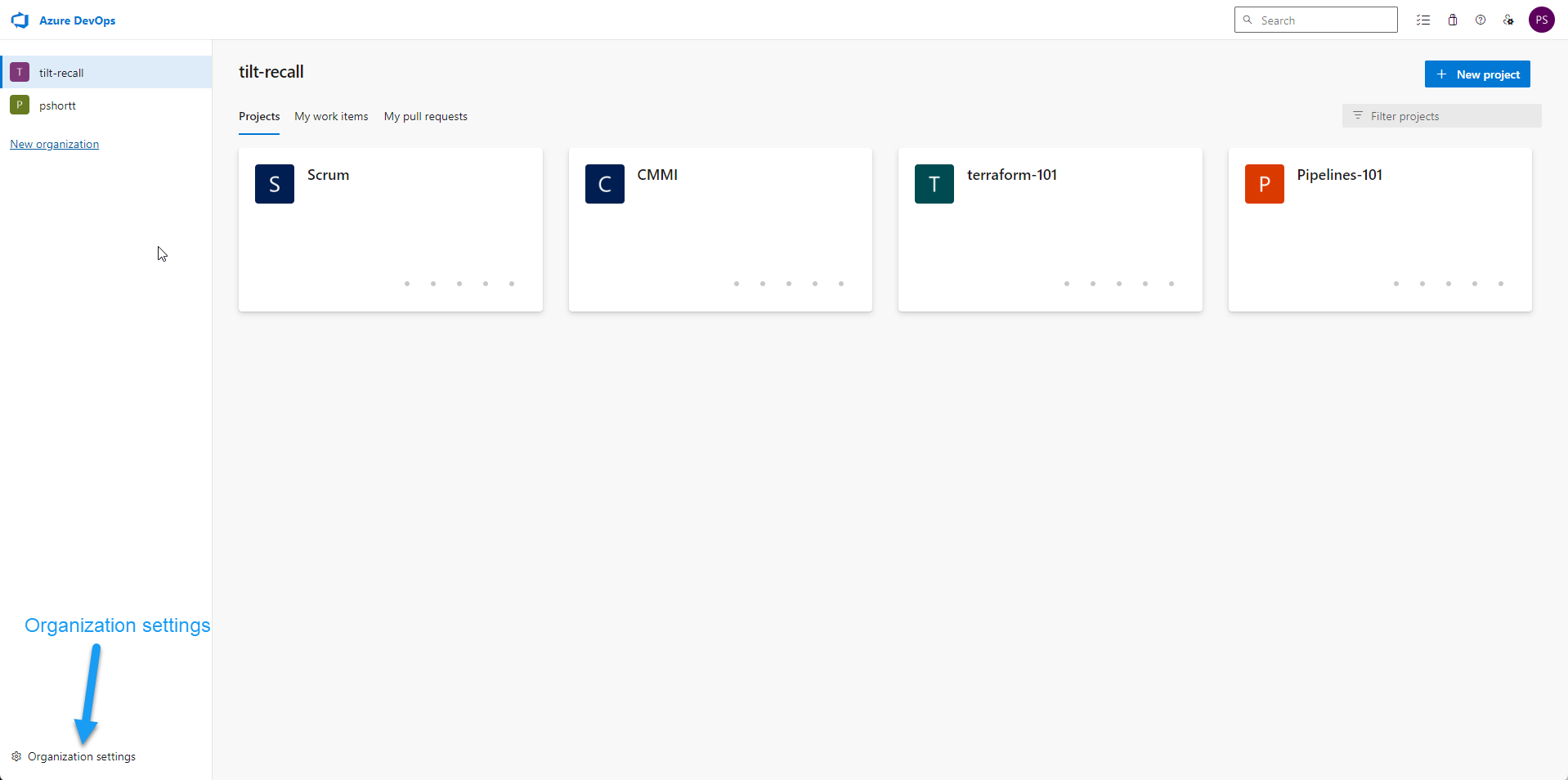
Alternatively from the ‘Organization settings’ link at the Organization level.
-
Choose ‘Organization settings’.
-
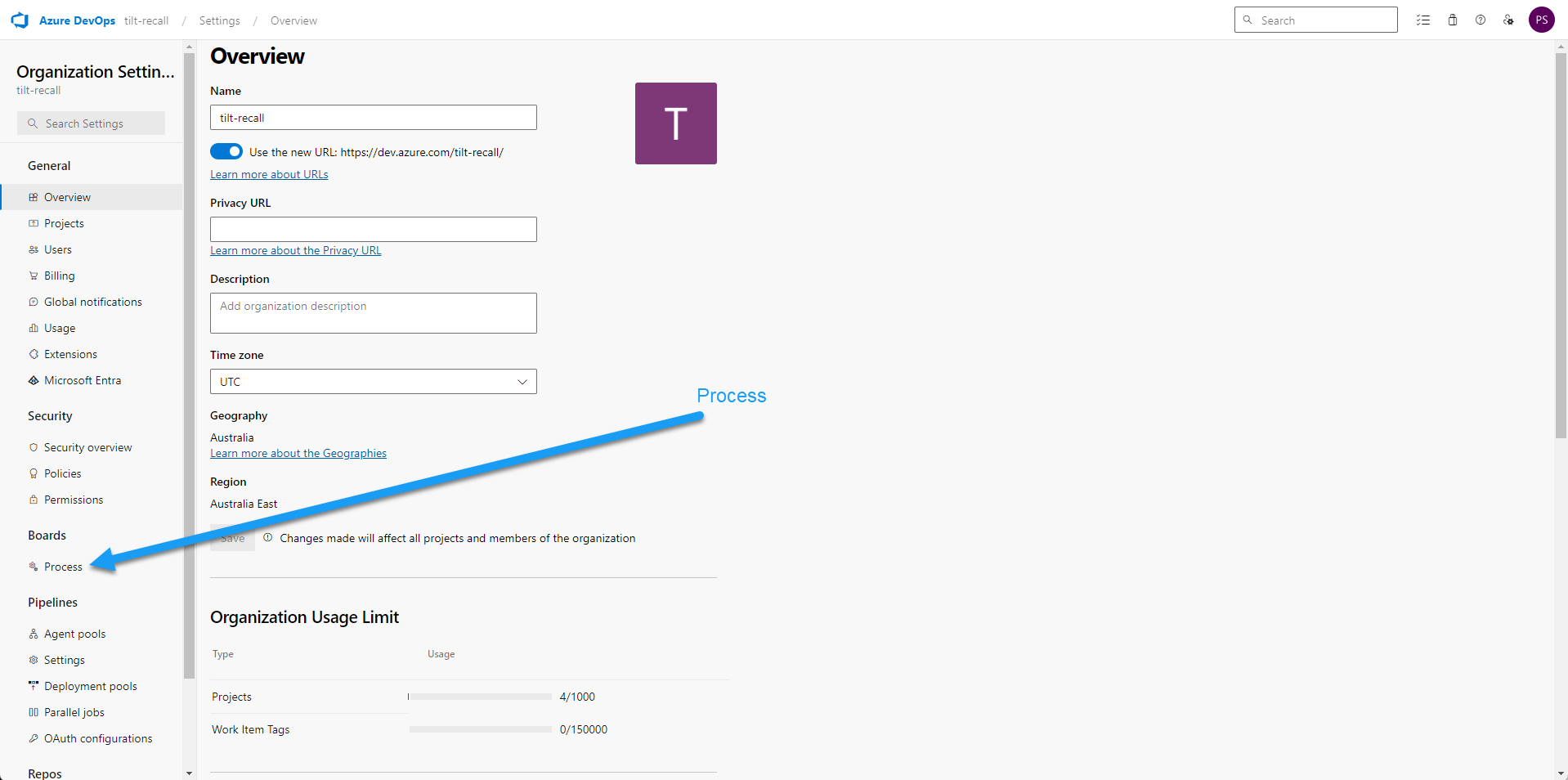
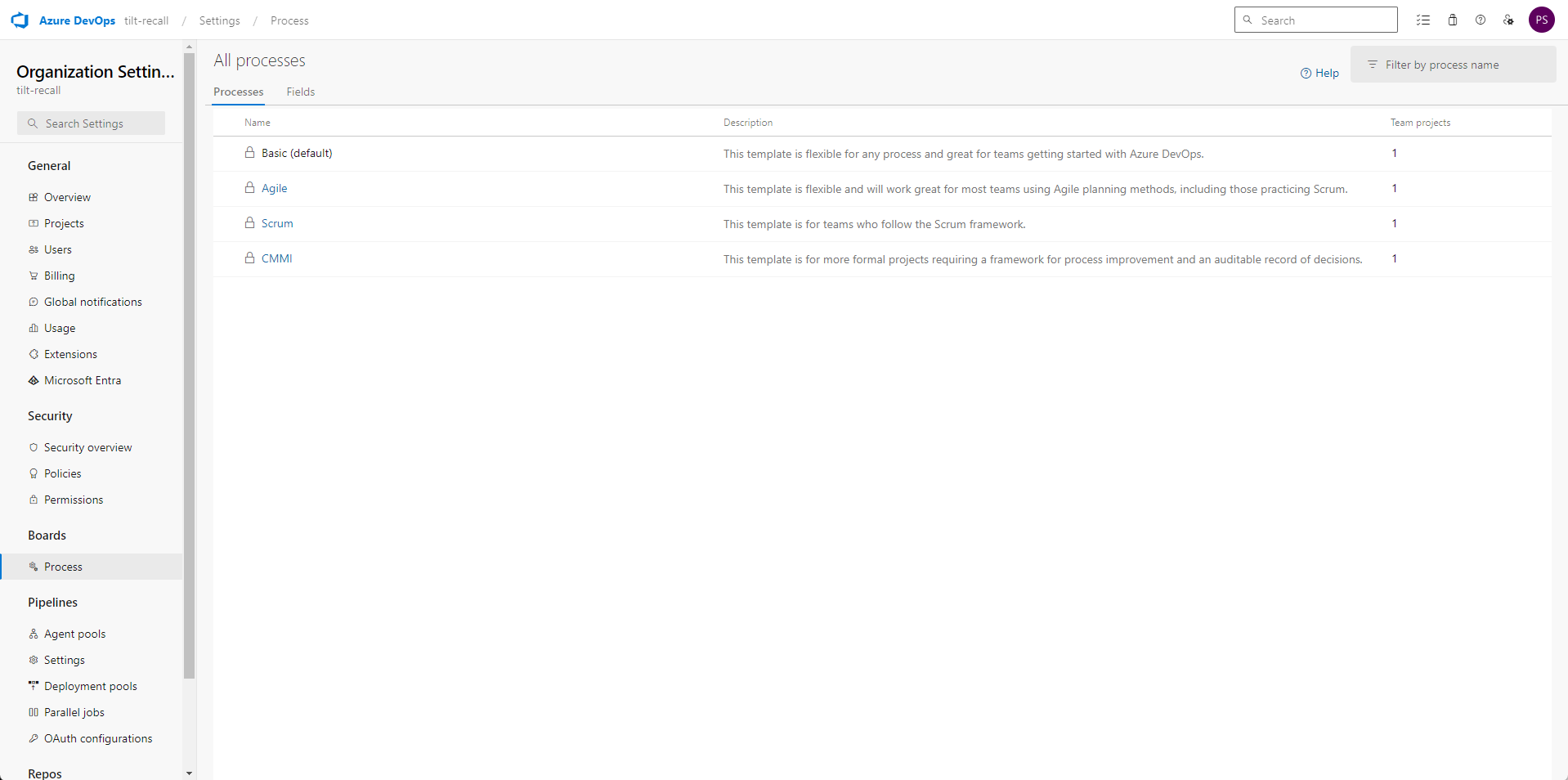
Select ‘Process’ in the navigation bar.
-
Note the various default methodologies - if you have not created at least one project of each type you will not see it represented in the list.
-
Choose the relevant work process you want to review.
-
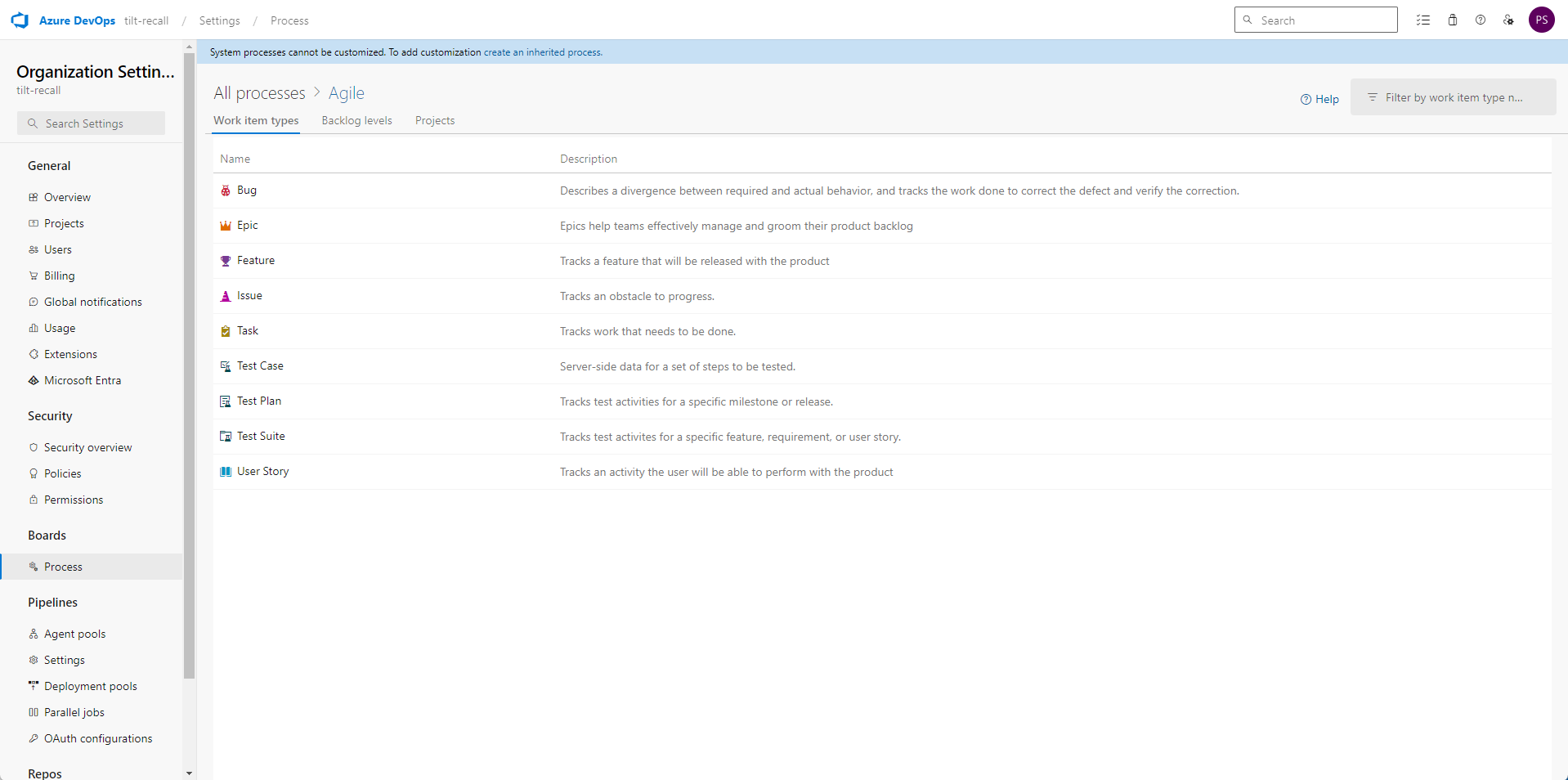
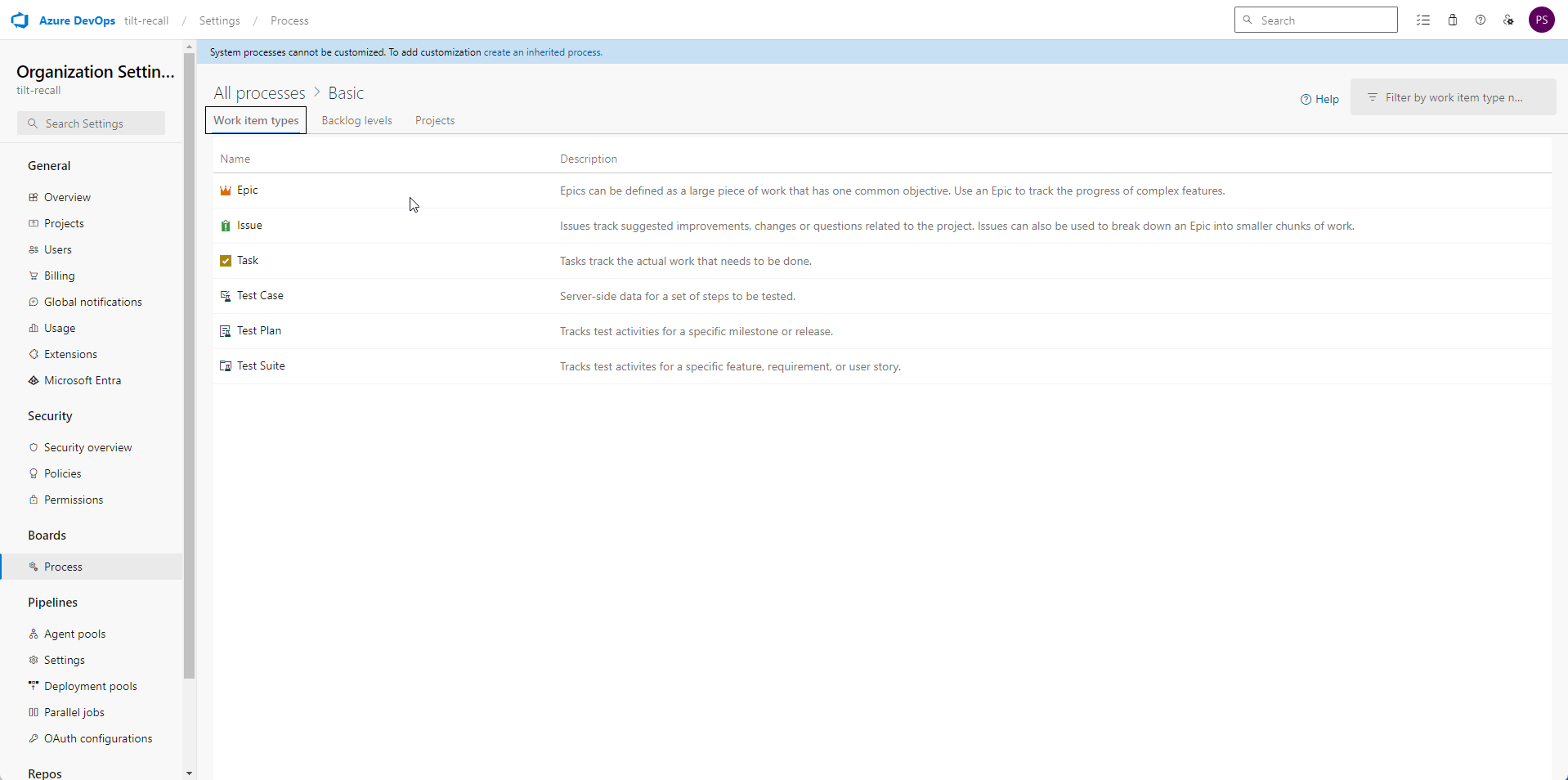
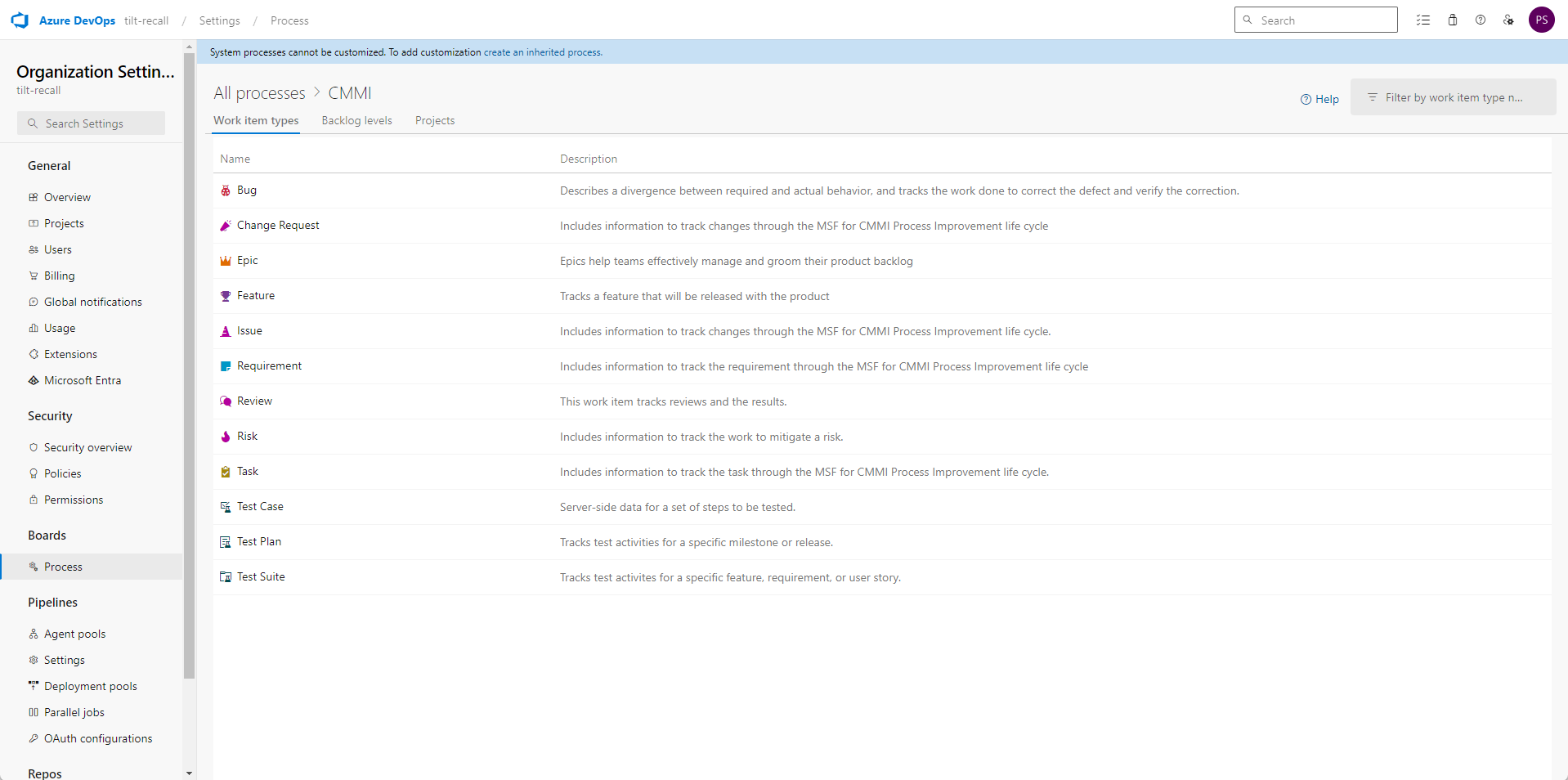
Let’s have a look at what processes are included by default in each option:
-
Agile
-
Basic
-
CMMI
-
Scrum
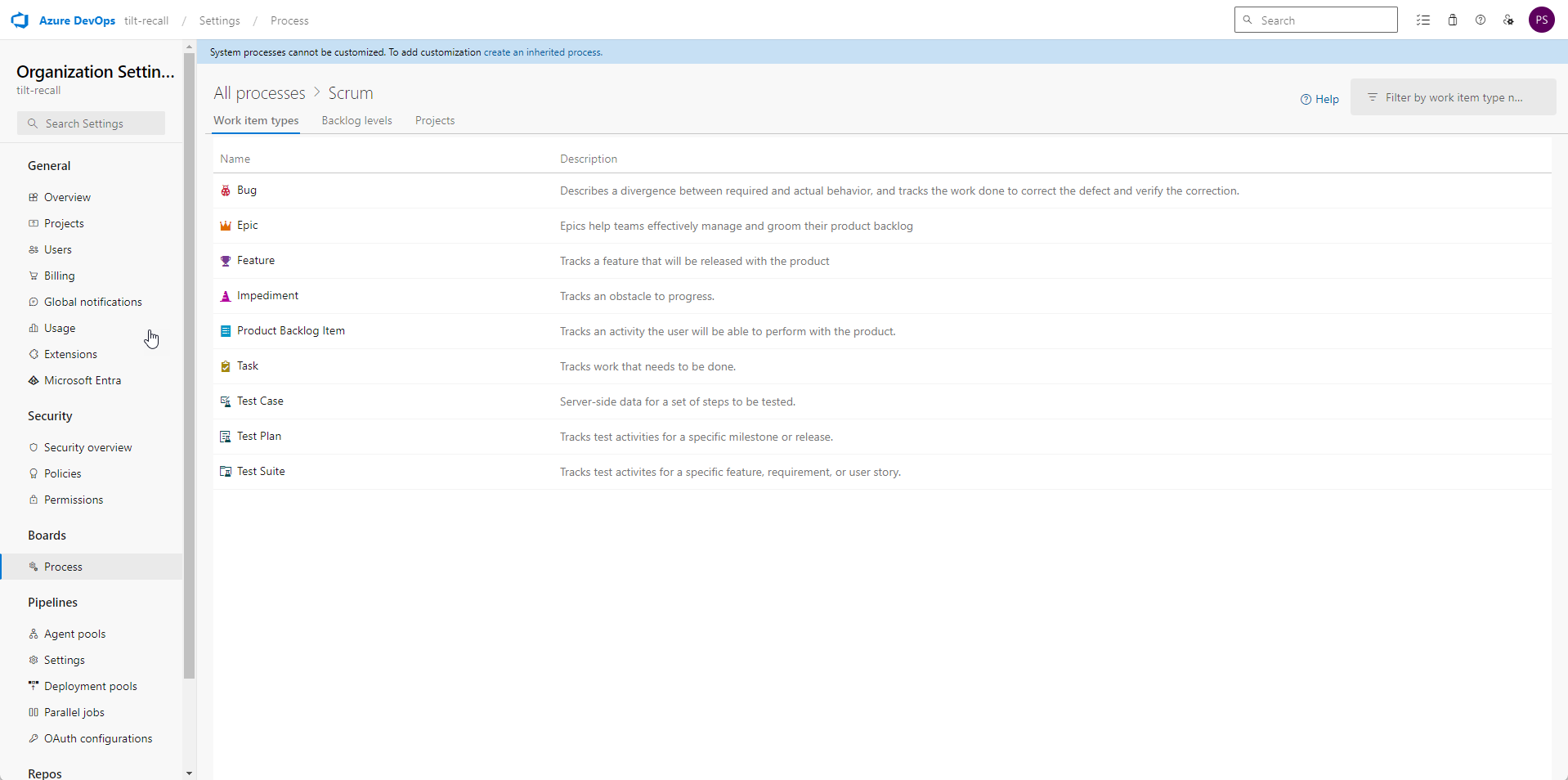
The below table outlines the features in each.
Work Item Types Agile Basic CMMI Scrum Bug X X X Change Request X Epic X X X X Feature X X X Impediment X Issue X X X Product Backlog Item X Requirement X Review X Risk X Task X X X X Test Case X X X X Test Plan X X X X Test Suite X X X X User Story X
Extensions in Azure DevOps
Extensions in Azure DevOps are essentially plugins that extend the base functionality of the platform. Similar to plugins for a browser or Extensions in VSCode. In a new organization from within the ‘Organization settings’ we can see that none are installed by default.
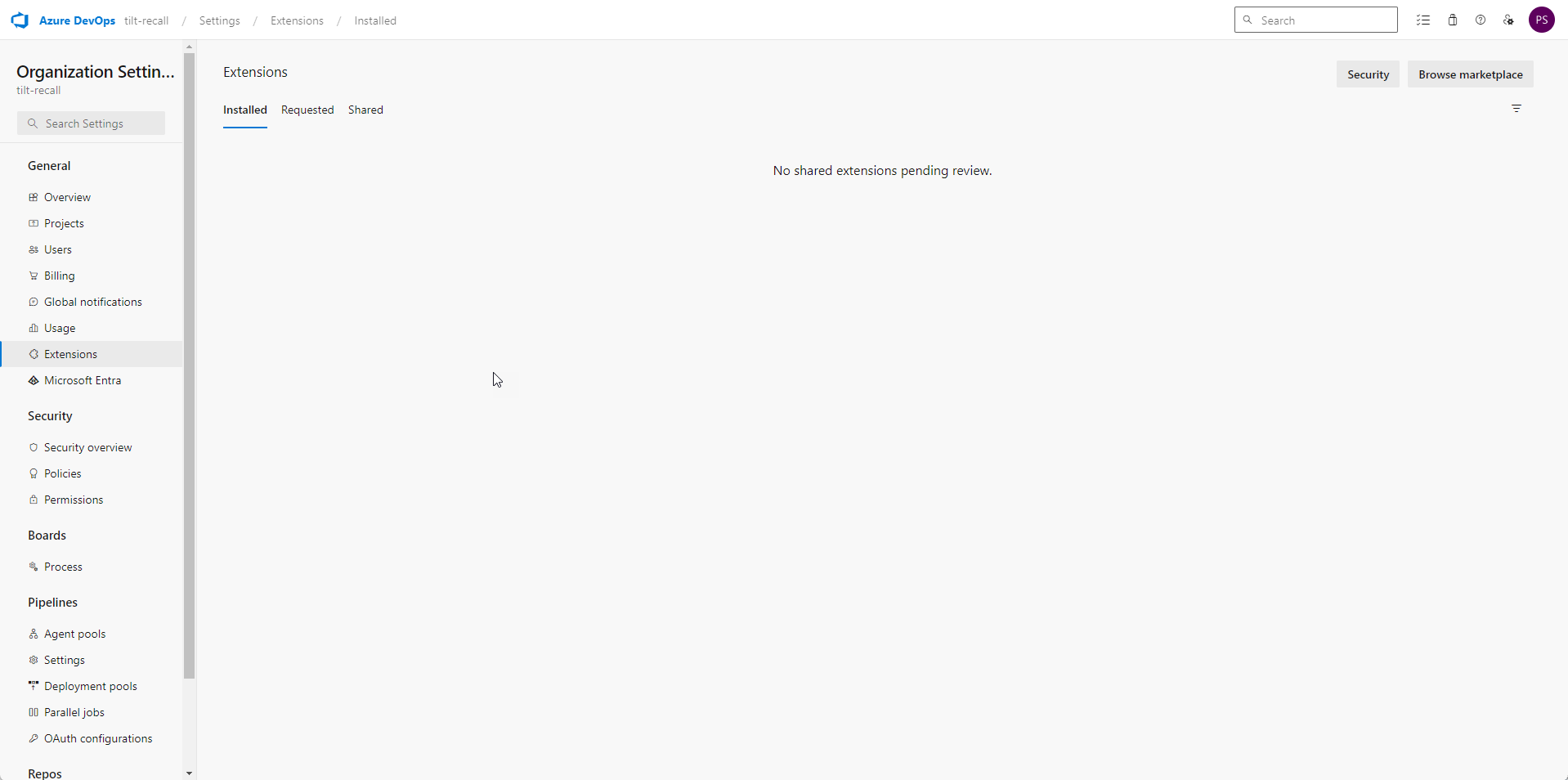
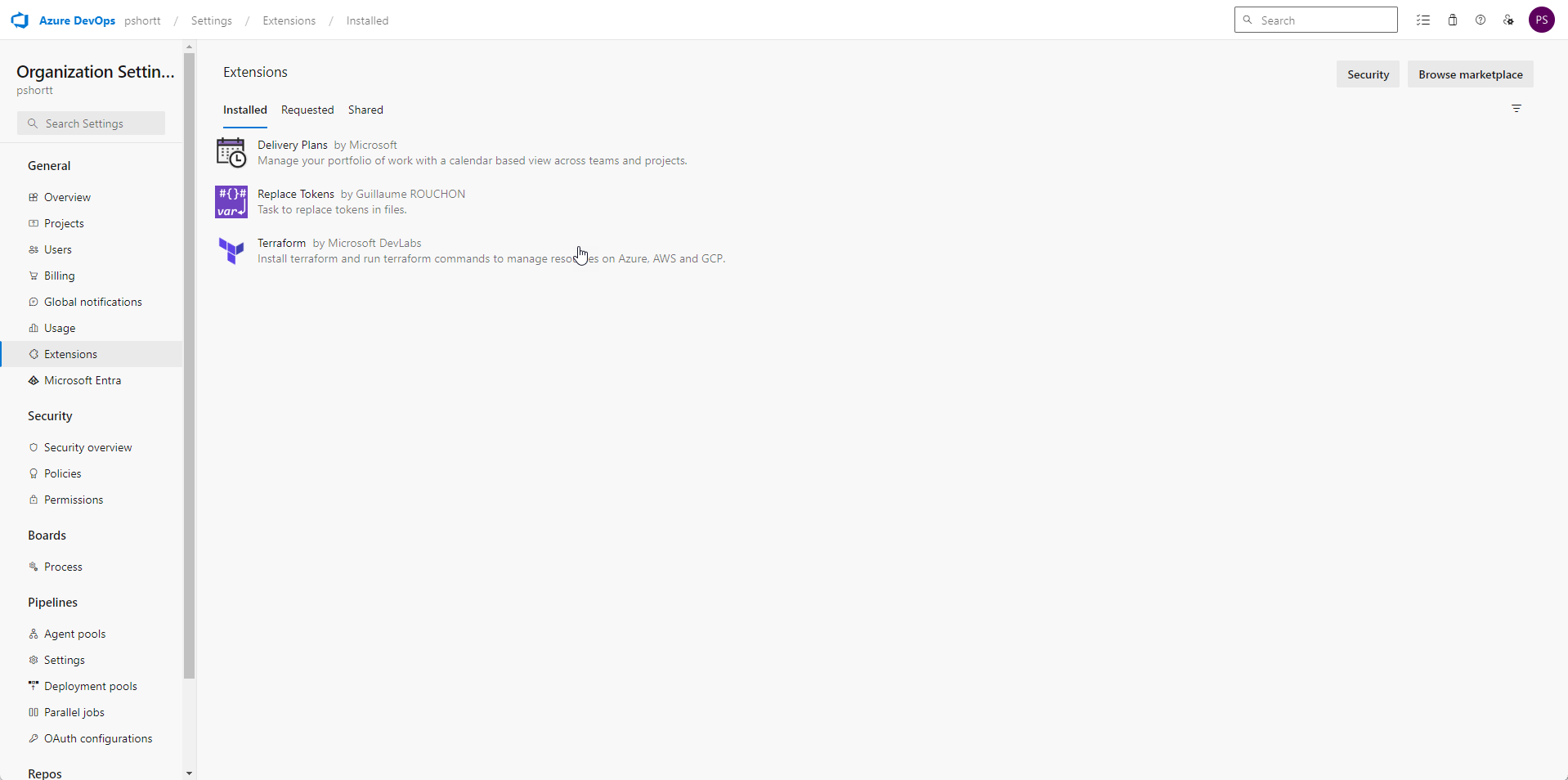
Depending on your authorization within the Organization you may not have permissions to install additional extensions. As extensions are installed they will populate accordingly.
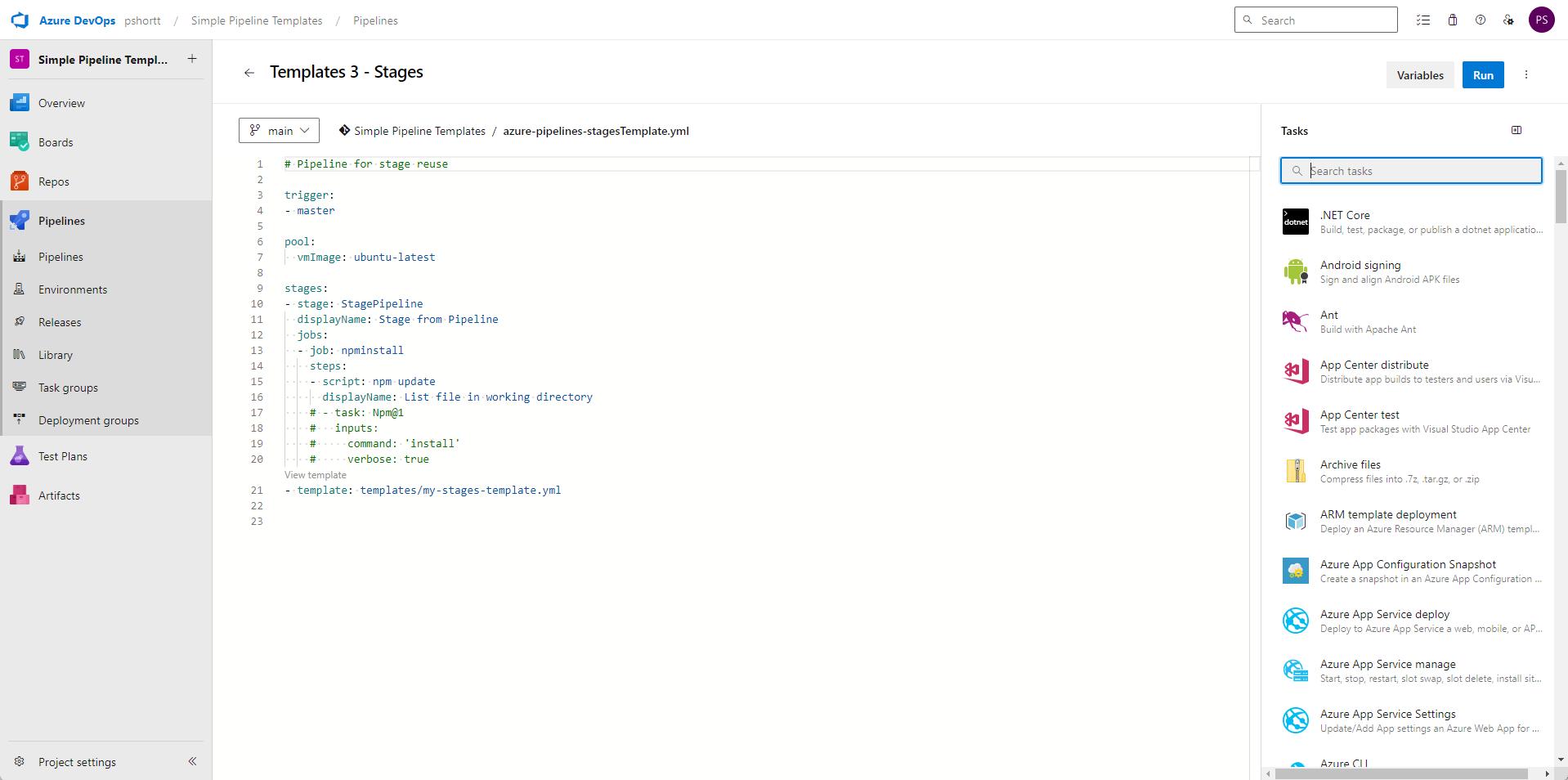
Extensions are most often visible via the Pipelines wizard if they have been installed. Many tasks are native to Azure DevOps and will not require a specific extension.
Generally they will be browsed and installed via the Visual Studio Marketplace.
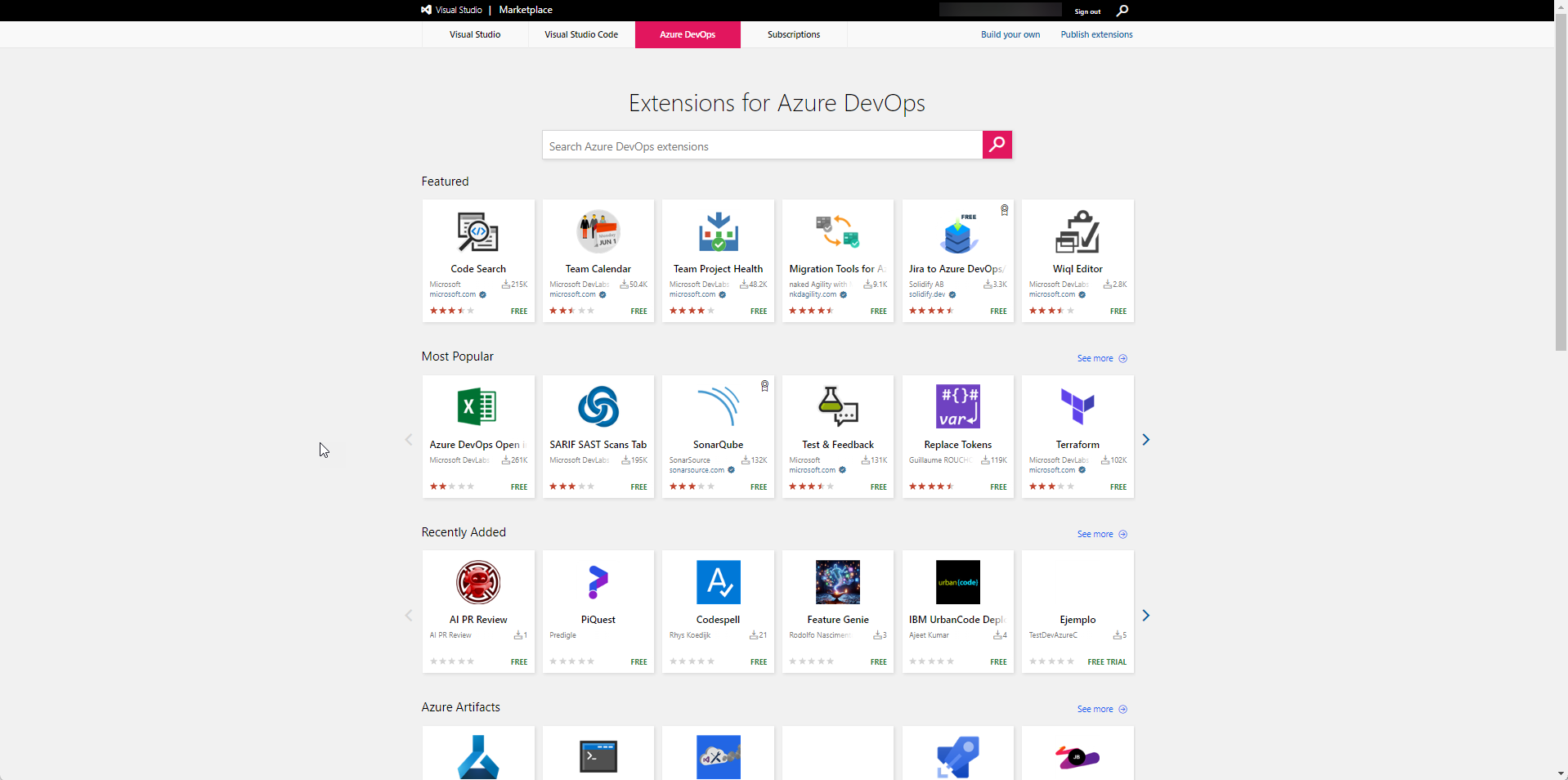
We can see there are many potential extensions for the various Azure DevOps components - Boards, Repos, Pipelines etc.
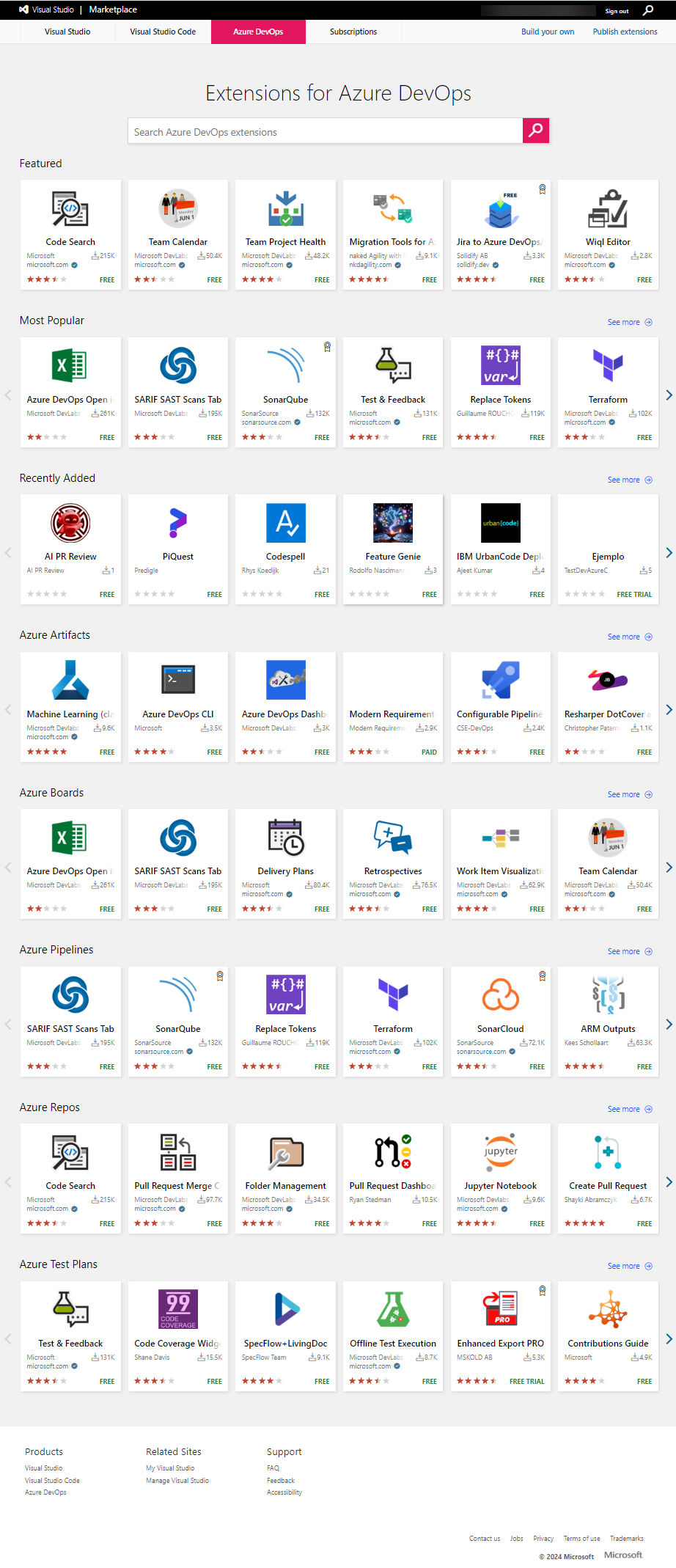
Not all extensions are free and many are written by 3rd parties so exercise caution and restraint in the extensions deployed.
If you do not have permissions or cannot see an extension you know is available discuss your request with an administrator of your Azure DevOps Organization.
-
When your Azure DevOps Organization is in the same region as your Azure tenant you cannot restrict the IP’s used by Azure DevOps as it will natively use the Azure Backbone network ↩